We've recently updated MarketTime Pro (mtPro) and have a list of enhancements to share with you! We release system updates every other week.
To receive these updates by email, please sign up here.
Week of October 20, 2026
Version 1.704
Order Code Now Editable on Transmitted Orders with the No Edit Lock.
When the manufacturer "No Edit Transmission" setting is enabled, and the order is transmitted, the Order Code field will remain unlocked and editable on mtPro. Users will also see a caution notification when sending an order to a manufacturer with this setting enabled.
Note: The Sales Location field has been renamed to Order Code across the mtPro app.
Week of October 5, 2026
Version 1.702
Enhanced Volume on Newer iPads
This improvement makes the newer iPads more audible, especially useful when scanning items in a noisy showroom
What does it mean for users?
Increased Audio Visibility: Scan beeps and app sounds are significantly louder and easier to hear on newer (A16) iPads, eliminating muted sound issues in loud or busy showroom environments.
Simplified Volume Control: Scan beep volume is now controlled via the standard hardware volume buttons and the main iPad volume slider, rather than through System Alert/Ringer settings.
Bulk Price Code Update
What Changed?
Added a new Bulk Edit Price Code feature within mtPro for sales orders.
Order writers can now select multiple items (or all items) at once and apply a target price code in bulk.
Added item-level dropdown pickers directly within the editor for quick individual price code selection.
Immediate recalculation of line item prices, subtotals, gross totals, and discountable order totals upon applying changes.
What Does it Mean for Users?
Time Savings & Efficiency: Eliminates the manual friction of opening and updating price codes item by item across large orders.
Streamlined Order Adjustments: Order writers can quickly match pricing to customer ship-to defaults or specific price tiers across an entire order in just a few taps.
Describe how It Works/Basic Workflow
Open Order: Navigate to a Finished Order on mtPro (iOS 17+).
Access Bulk Edit: Tap the Bulk Edit button on the sales order.
-
Review Assigned Price Code: The customer’s assigned ship-to price code displays in the top-left; tapping this tag pre-selects it in the bottom picker.
-
Select Items:
-
Use Select All to choose all eligible products, Deselect All, or manually tap individual items.
-
-
Choose & Apply Price Code:
Select a target price code from the main bottom picker (which shows valid price codes across the selected items) and tap Apply.
The price code will be applied to eligible items (items with the saved price code) on the order.
-
If the manufacturer modifies the price of an item or price code after an order is finished, the Recalculate Prices button becomes visible to the order writer, allowing them to update the prices on the affected items. The $ sign also appears on the affected items.
Limitations/ Important Notes
OS Version Restriction: Available only on iOS 17+ (the button is hidden on iOS 16 and older).
-
Order Status: Only accessible on Finished Orders.
-
The Bulk Edit button is disabled on Pending and Locked orders.
-
-
Item Restrictions & Exemptions:
-
Manually Overridden Prices: Exempt from bulk edit; cannot be edited with the picker or selected.
-
Discounted Items: Exempt from bulk edit; cannot be used with the picker or selected.
SCS Pricing: Items with Special Customer Scale pricing are exempt from price updates (the picker can be tapped, but the price will not update).
-
-
Only price codes assigned to the selected item will be visible in the picker.
Empty Picker State: If selected items have no assigned alternate price codes, the picker will display as empty.
Video Demo:
Price Code Enhancement on iOS 16
With mtPro version 1.702, iOS 16 users can now have the correct price code automatically assigned by ship-to location when items are added for a customer.
Please note that iOS 16 users will experience a slightly limited version of this feature. Unlike customers on iOS 17 and above, you won't be able to change the price code on an order or modify manufacturer default records; these capabilities are currently available only on iOS 17+.
We recommend upgrading to iOS 17 or later when possible to take full advantage of this enhancement.
Users on iOS 16 will see one of these messages each time they log in, depending on whether their iPads can upgrade to iOS 17 or later.
Users on iOS 17 devices who cannot advance beyond iOS 17 will see this message every 3 days when they log in.
Users on iOS 17 devices who can upgrade to iOS 17.5 or later will see this message every 3 days when they log in.
Version 1.701
mtPro Manufacturer Defaults and Enhancement
Important Note: This feature is not supported on iOS 16. Only iOS 17 and above are supported.
New Improvement
For details on this process in the app, please see the dedicated support article here.
This enhancement expands the Manufacturer Defaults experience and improves the way billing and shipping account numbers, shipping method, and payment terms are displayed and applied during order entry in mtPro.
-
Users can now see and maintain more manufacturer-level defaults (RGRM) in mtPro per shipping location. Prior to this change, RGRM records were applied at the Bill-To level on mtPro.
The Manufacturers tab on mtPro now indicates which manufacturer's shipping location has an RGRM configuration.
RGRM records for billing and shipping account numbers, default payment term, default shipping method, and price code created on the web app are now visible on mtPro.
Users with the customer edit permission can now create a new RGRM record per shipping location or modify existing ones.
Defaults stored in the system can flow between the web app and mtPro.
Defaults saved on the RGRM will be passed into the sales order.
Note: After the update is applied, the user needs to sync to retrieve the necessary data from the cloud. The sync after the update will be a full sync.
Note: mtPro only supports payment terms and shipping methods that are approved by the manufacturer. If an unapproved payment term/shipping method is set as the default in the web app, it will not be passed to mtPro.
Sales Order Price Code Selection
The pricing updates make price code behavior more visible and more predictable for order writers. The system now uses the manufacturer defaults more directly and gives users item-level price code selection during order entry.
Important Note: This feature is not supported on iOS 16. Only iOS 17 and above are supported.
How price code selection works
The set default price code is automatically added to the item in the sales order.
A price code added to an item in the web app is available for the order writer in mtPro.
The order writer can select one of the available price codes for that item.
The user can change the selected price code to another price code in the list.
The user can choose the no price code option to use the unit price or volume price.
Pricing Policy
Scenario |
System behavior |
Outcome |
|---|---|---|
A price code is selected |
The price code takes precedence over volume pricing |
The item uses the price code value |
Quantity qualifies for volume pricing, but a price code is applied |
Volume pricing is not applied |
The price code still controls the item price |
User manually changes the unit price |
The selected price code is removed |
The manually entered unit price is used |
User selects a price code after manually changing the unit price |
The system reapplies price-code-based pricing |
The item price is set to the price code value |
A discount exists on the item |
Changing the price code does not remove the discount |
Discount remains in place |
A default price code is stored on the item, and as the customer’s default on the RGRM table |
The price code is automatically applied |
The item starts with the default price code selected |
User removes the price code |
The item falls back to standard pricing rules |
Price reverts to unit price or volume price, whichever applies |
SCS price for the item exists with a price code and volume pricing |
The SCS price supersedes the price code and volume price. |
The SCS price is applied to the item. |
SCS item has no SCS price but has both price code and volume price saved |
The price code supersedes the volume price. |
The price code is applied to the SCS item. |
Deselecting the default price code will display other pricing options.
Limitations
This feature is not supported on iOS 16. Only iOS 17 and above are supported.
-
Updating the RGRM records after the order is written and finished will not automatically update the sales order.
If another price code is set in the RGRM table after the order is finalized, the price code on the existing order remains unchanged. The user will see the newly updated price code for informational purposes, but the original price code will remain in effect for the order.
If the existing order is pending, and the RGRM record is updated, finishing the order pulls the latest RGRM update and applies it to the order.
The SCS price takes priority when price code and volume pricing are present. If the SCS price is not set, then the price code is applied.
Price code cannot be selected on the size, color, and style (SCS) matrix. Price codes can be added to individual variants on the product details screen.
Only one price code can be selected as a default at a time.
mtPro only supports payment terms and shipping methods that are approved by the manufacturer. If an unapproved payment term/shipping method is set as the default in the web app, it will not be passed to mtPro.
This improvement no longer supports the “use best pricing” feature. The new pricing logic now applies.
Keyword Search Improvement
Users will be able to search for items using keywords. Keywords set in the web app will now be searchable in mtPro, making item discovery easier.
Click the link to watch the webinar on the latest mtPro features: mtPro New Features
Week of August 17, 2026
Version 1.632
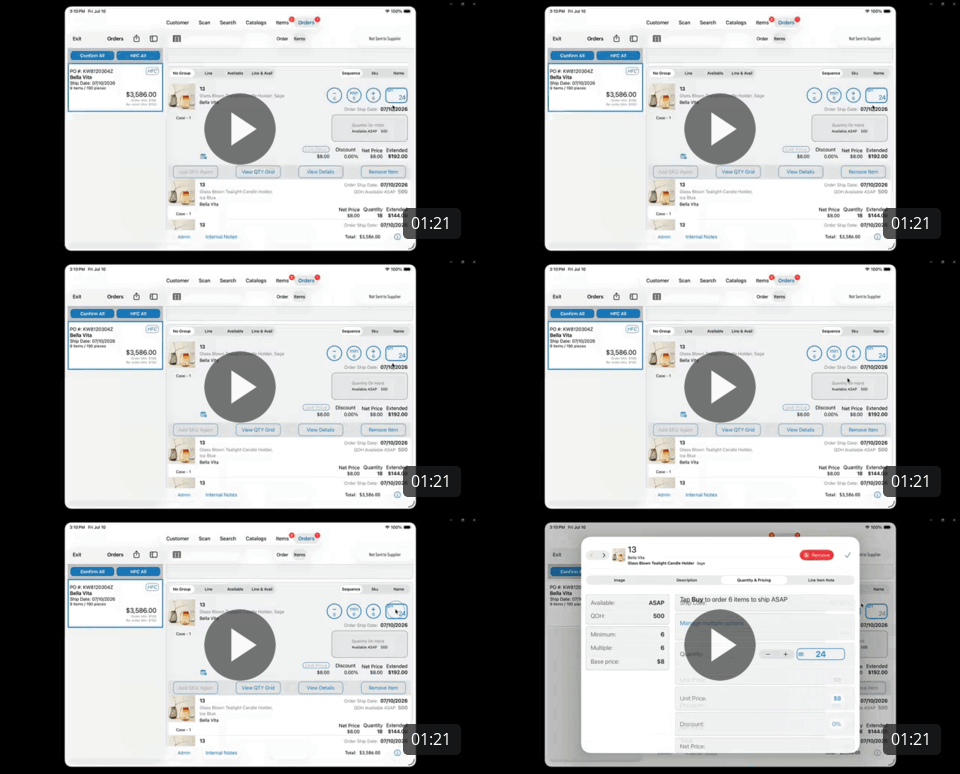
mtPro Date Selection, Quantity, Pricing, Discount, and SCS Improvements
Users can now manage ship dates more efficiently with a consistent workflow, edit product details with fewer taps, and navigate product variants more easily. These improvements create a cleaner interface, reduce training needs, and provide a more streamlined order-writing experience.
What's New?
Unified ship date management with a single, consistent interface across the app.
Improved calendar experience and restored swipe capability.
Simplified editing for quantities, prices, and discounts with a more intuitive layout and consistent controls.
Enhanced Size, Color, and Style selection with improved sorting, clearer variant visibility, and quicker access to the product matrix.
Features |
Existing User Interface |
New User Interface |
What Changed? |
|---|---|---|---|
Date Management Improvement |
|
Added help guide to explain the meaning of icons.
|
|
Quantity, Price, and Discounts UI and Function Improvement |
Expanded view
Collapsed view
|
Expanded view
Collapsed view
|
|
Size, Color, Style Options Enhancement |
|
|
|
 Vidyard Recording
 Vidyard Recording
Copy Items from Locked Transmitted Orders
What changed?
Users can now copy items from orders that are locked by the "No Edit After Transmission" setting. Previously, locked orders could not be interacted with at all. While these orders remain non-editable, the Copy/Share option is now available, making it easy to reuse items in a new order.
What does it mean for users?
If you need to reorder all or part of a previously transmitted order, you no longer have to manually re-enter the items. Simply copy the desired items from the locked order and paste them into a new order, saving time and reducing the risk of data entry errors.
How it works
- Open a transmitted order that is locked by the "No Edit After Transmission" setting.
- Tap the Share icon
- Copy items
- Create a new order.
- Paste the copied items into the new order.
-
Edit the new order as needed.
Note: The original transmitted order remains locked and unchanged. You will be able to view the product details, but you cannot edit the items on the order. You will also not be able to add items through the scanner.
Improved Customer Visibility for Users with Admin and Salesperson Roles
What changed?
We've improved how mtPro determines customer visibility for users with multiple roles. If a user has both Admin and Salesperson roles, mtPro will now automatically display the customers assigned to their Salesperson ID.
What does it mean for users?
Users with both Admin and Salesperson roles will now see their assigned customers without any additional setup. Currently, if a user is assigned both the Admin and Salesperson roles, mtPro does not limit customer visibility to only those assigned to the user's Salesperson ID (SID). To restrict the user to viewing only their assigned customers, the Admin role must be removed from the account.
How it works
- Sign in to mtPro with an account that has both Admin and Salesperson roles.
- mtPro automatically evaluates all roles assigned to your account.
- If a Salesperson role is found, the app displays only the customers assigned to your Salesperson ID.
- You can immediately access your assigned customers without changing your roles or settings.
Notes
- If Show All Customers is enabled, you will continue to see all customers, as this setting overrides salesperson-based filtering.
Jump Directly to Any Catalog Page
What changed?
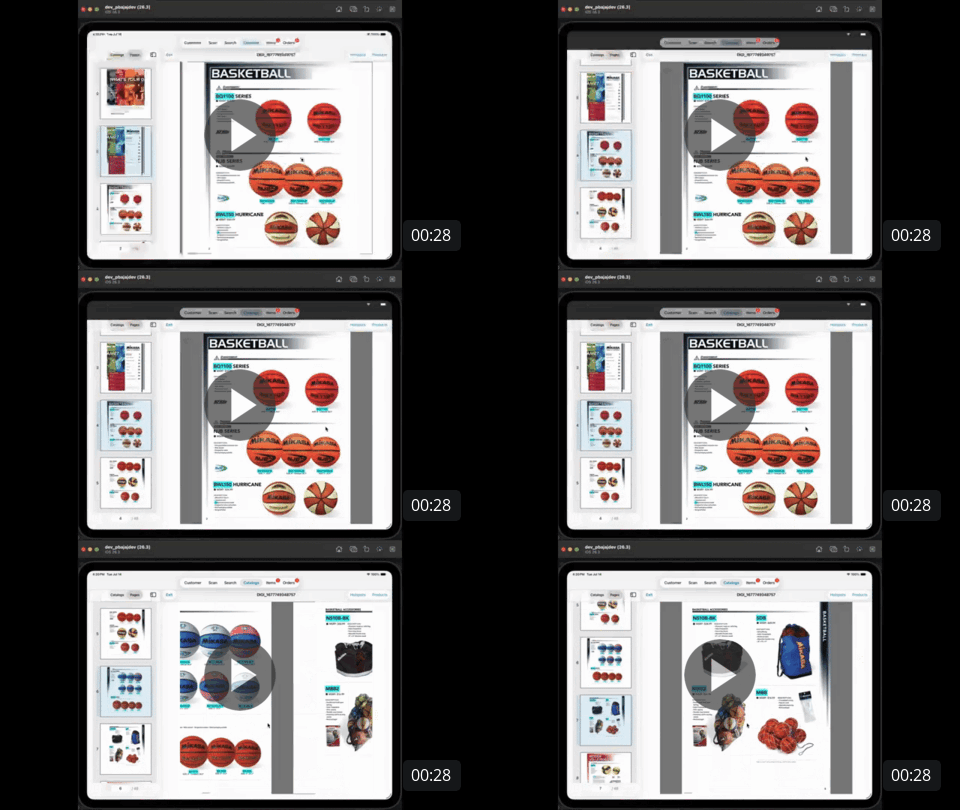
We've added a Catalog Page Jumper to mtPro, making it easier to navigate catalogs. Instead of scrolling through pages one at a time, you can now jump directly to a specific page.
To provide the best experience based on catalog size:
- Catalogs with fewer than 40 pages display a page picker.
- Catalogs with 40 or more pages display a page number field where you can enter the page you want to view.
We've also improved page navigation, so the current page indicator now updates automatically as you swipe through catalog pages.
How it works
- Open a catalog in mtPro.
- Use the page navigation control in the lower-left corner of the catalog.
- For catalogs with fewer than 40 pages, select a page from the page picker.
- For catalogs with 40 or more pages, enter the desired page number.
- The catalog immediately opens the selected page.
- As you swipe between pages, the page indicator automatically updates to show your current location.
Week of July 6th
Version 1.631
Hidden Customer Number Field
The Billing Customer Number and Shipping Customer Number fields have been removed (hidden) from the Sales Order view, the Edit Customer and Edit Shipping Entry pages, and the order copy. These fields were used in the legacy BrandWise system but are no longer utilized in the MarketTime platform.
What does it mean for users?
Users on the mtPro app will no longer see the legacy Customer Number fields on sales orders, order copies, or customer edit pages. This eliminates confusion between the recently introduced Account Number fields. Only the Manufacturer's Account number will appear on the sales order and printed order forms when available.
Improved Product Line Restriction Enforcement for Product Variants (SCS)
What Does This Mean for Users?
Product variants (SCS) now follow the same product line restrictions as their parent items. Users can no longer accidentally add restricted variants to orders containing unrestricted items or items from a different product line.
When a restriction prevents an item from being added, mtPro now displays a clear message explaining the reason, such as Line Restricted or Ship Date Conflict. This replaces the previous behavior where restricted variants could sometimes be added, or users received unclear or misleading prompts.
How It Works
- Create a new sales order or open an existing order in mtPro.
- If an item is configured to Split by Product Line, its product variants (SCS) are also restricted and cannot be added to orders containing unrestricted items or items from a different product line.
- In Search view, restricted items display a badge indicating the reason they cannot be added (for example, Line Restricted or Ship Date Conflict). Selecting a restricted item displays the restriction message and disables the Like and Buy buttons.
- When scanning products, attempting to scan a restricted SCS item displays an alert explaining why the item cannot be added, preventing it from being added to the order.
Fixed
MSRP Visibility Issues
We fixed an issue that caused the MSRP value to display inconsistently on the order copy. Users who enable the "Print with MSRP" toggle when sharing/printing an order copy will now consistently see the current MSRP values on their order copies. Previously, MSRP would appear initially but disappear from existing orders after reinstalling the app or performing a full download of it. This will no longer happen.
Week of June 22, 2026
mtPro Catalog Reopen Fix
We resolved an issue that prevented users from reopening a catalog after it had been closed.
What's Changing?
As part of this fix, a minor UI enhancement has been introduced. When a catalog has not yet been downloaded, users may temporarily see two catalog icons. Both icons are fully functional and can be used to collapse or expand the left catalog pane.
What to Expect
- Two catalog icons will be displayed only for catalogs that have not yet been downloaded.
- Once a catalog has been downloaded, or if it has been downloaded previously, only the standard blue catalog icon will be displayed.
This enhancement ensures users can reliably reopen catalogs while maintaining a seamless browsing experience.
Week of May 25, 2026
Version 1.627
Order Taker Selection
The MarketTime iPad app now includes enhanced Order Taker assignment options to support different showroom and sales workflows. Users can configure either Require Order Taker Selection or Default Order Taker settings based on how their team operates. This new feature does not change the logged-in user; it only changes the “Order Taker” name on the order.
The Require Order Taker Selection setting is ideal for shared showroom devices. When enabled, users are prompted to select an order taker when starting a new order, helping ensure orders are attributed to the correct person. This setting works only in Show Mode.
-
The Default Order Taker field is designed for situations where one rep temporarily uses another device. When configured without enabling the "Require Order Taker Selection" setting, all orders are automatically assigned to the selected default order taker without additional prompts. This setting works in both Show and Road Modes.
Additional behavior updates include:
- The system saves the last manually selected order taker and sets them as the default order taker.
- PO numbers continue to reflect the initials of the assigned order writer.
- Enabling “Require Order Taker Selection” clears any existing default order taker selection.
- Switching from Show Mode to Road Mode clears the selected default order taker.
These settings can be configured independently within the User Profile menu on mtPro.
-
The Default Order Taker field is designed for situations where one rep temporarily uses another device. When configured without enabling the "Require Order Taker Selection" setting, all orders are automatically assigned to the selected default order taker without additional prompts. This setting works in both Show and Road Modes.
Salesperson/Order Writer Filter
The Find Orders page in mtPro now includes functional Salesperson and Order Writer filters, making it easier to quickly locate specific orders.
What’s New
Users can now:
- Filter orders directly by Salesperson or Order Writer
- Combine these filters with other available filters for more refined search results
- More easily locate orders without relying on workarounds
Note: When the Filter on PO Number Only option is enabled, other filters are temporarily disabled.
Additional Details
- The Salesperson filter displays sales reps only.
- The Order Writer filter supports both RepGroup salespersons and RepGroup users.
- In Road Mode, users can only search and select their own salesperson record when filtering by Salesperson.
Version Control and System Messaging
-
Update Notifications — If you're running an older version of the app, you'll now see a friendly prompt recommending you update to the latest version. You can continue using the app while you plan your update.
Offline Mode for Outdated Versions — Significantly outdated versions will continue to work in offline mode but will have network access disabled until updated. This ensures data integrity across the platform.
End-of-Support Enforcement or Critical Updates— Versions that are no longer supported will display a clear message and require an update before you can sign in, keeping your data safe and compatible.
System Messages — We can now communicate important announcements, maintenance windows, or known-issue alerts directly within the app, so you're always informed.
How It Works:
Notifications appear at sign-in or when you tap the Sync button on the dashboard.
Informational messages will only appear once per day to minimize disruption.
Critical updates that affect app functionality will require action before you can continue.
Login Improvement for Salesperson with Repgroup User Role
Users who are both Sales Reps as well as RepGroupUsers will now experience a less restricted view of sales orders, customers, and manufacturers.
Previously, users with both SalesRep and RepGroup/admin roles were incorrectly treated as SalesReps if that role was created first. This caused incomplete order search results. Now, mtPro evaluates all user roles and prioritizes RepGroup access, ensuring users receive complete and unfiltered order data.
Repgroup Restriction on Orders with "No Edit After Transmission" Setting Enabled
What changed?
This update extends the restriction so that repgroups and users with the admin role are also prevented from editing transmitted orders when the "No Edit After Transmission" setting is enabled.
Previously, the "No Edit After Transmission" setting only prevented salespeople from editing transmitted orders in mtPro. Admins and repgroups could still edit these orders, which was inconsistent with the behavior of the web app and the manufacturer's expectation.
How it works:
- A manufacturer or admin enables the "No Edit After Transmission" setting on the web app.
- Once an order is transmitted (status = SENT), any user attempting to edit it in mtPro—including repgroups and admins—will find the order locked.
- A message is displayed explaining why the order is locked, consistent with web app messaging.
- While locked, users can still modify the Internal Notes and Salesperson group fields.
Unavailable Items Cannot be Added to an Order
Unavailable items can no longer be added to orders in mtPro. When writing an order, unavailable items are hidden from the default item listing. If a user searches for an unavailable item, it appears with an "Unavailable" label (similar to discontinued items) but cannot be added to the order.
The "Show Inactive" toggle has been renamed to "Show Unavailable"; when enabled, users can view unavailable items with the label.
Next Available Date Added to the mtPro Order Copy
Users can now view the Next Available Date for an item on the Order Copy, providing greater visibility into item availability.
Internal Notes Field Added to Sales Order
What changed?
- Users will now see "Special Instructions" instead of "Order Note." The functionality remains the same, but the name is clearer and consistent with the web app.
- Users can now view and edit Internal Notes directly in mtPro, eliminating the need to switch to the web app for this purpose. Updates made in mtPro reflect on the web app, and vice versa.
- Internal Notes remain editable even after an order is transmitted, including when the "No Edit After Transmission" setting is enabled.
iOS X26 UI Changes
You may notice some UI changes due to some iOS 26 updates made by Apple. These changes will be visible when the user takes the next mtPro update.
Navigation Buttons Color Change
One significant change Apple made is that the navigation buttons will turn blue when disabled. Currently, the navigation buttons appear blue when active. After this update, active buttons will be black (on a white theme) or white (on a black theme).
Existing view
New view
Replacement of Done Button with a Checkmark
The Done buttons will now be replaced with a checkmark everywhere on mtPro.
- Existing view
- New view
Glass-Like User Interface
The UI will be lightly changed to a more "glass-like" and transparent look.
- Existing view
-
New view
Items Screen Modification
The Items screen may appear slightly different for those on iOS 26, especially the Sequence/SKU/Name buttons.
Existing view
New view
UI Resizing:
iOS 26 introduced two new ways to resize the screen.
-
Clicking this arc in the bottom-right corner of the screen will reduce the screen size. Clicking on it again will return the screen to its original size.
Resized screen
-
Double-tapping on the top three dots at the top left corner of the screen will resize the screen
Fixed
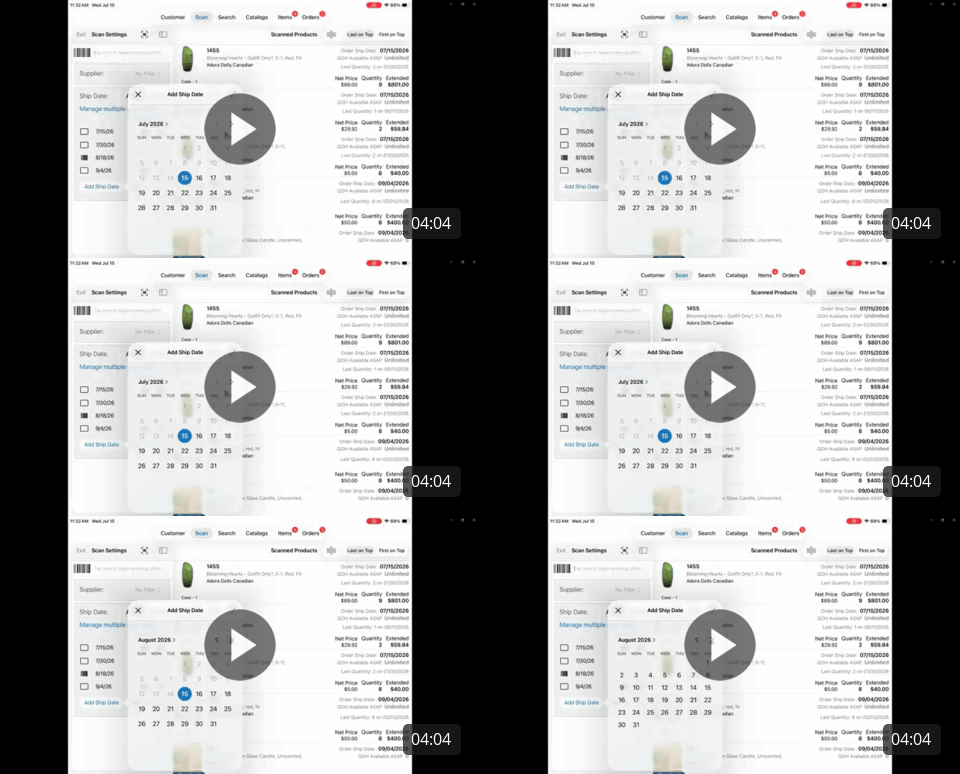
Calendar Skipping to Random Months
We resolved an issue where the date picker on the Scan screen would unexpectedly jump to random months. Note: User on iOS 26 devices, will not be able to use the swipe action. Users can navigate dates using the Next and Previous buttons only.
Week of April 20, 2026
Version 1.626
Login Required
mtPro is making security updates that will require you to log in again after you take the next MarketTime update. This is a one-time step, and your data will not be lost.
Before updating, please make sure you have the credentials of the originally signed-in user. If you enter a different set of valid credentials, you may be unable to log in. To resolve this, simply re-enter the password for the correct user account.
Device Validation Enforcement
Our sync system is designed to deliver only the data that has changed since your last sync, a process that depends on each license being associated with a single device. When multiple devices share the same license, this mechanism breaks down, which can result in devices missing critical data updates and users writing orders against incomplete or inaccurate information.
To ensure every device receives complete and accurate data, we are introducing enforcement of the one-device-per-license requirement. For now, if your Device ID does not match the assigned license, you will see a notification but will still be able to log in. In the near future, new installations and reinstalls will be blocked from logging in when the Device ID is not associated with the license.
Improved Item Sorting on Selected Items View
Items on the Selected Items view are now sorted using a more reliable and consistent method. Previously, sorting could produce unexpected results depending on data availability. Items are now sorted case-insensitively using fields that are always present on every item, ensuring a predictable and stable sort order across all scenarios.
Custom Items, Unknown Products, and/or Deleted Products will be displayed in the end (or beginning) of the list.
Order Cancellation Removed from Product Details View
The option to cancel an order has been removed from the Product Details view to reduce the risk of accidental cancellations while browsing product information.
Order cancellation remains fully available in two places, from the Orders Tab, or when attempting to remove the last item on an order via the Scan screen.
mtPro Camera Scan
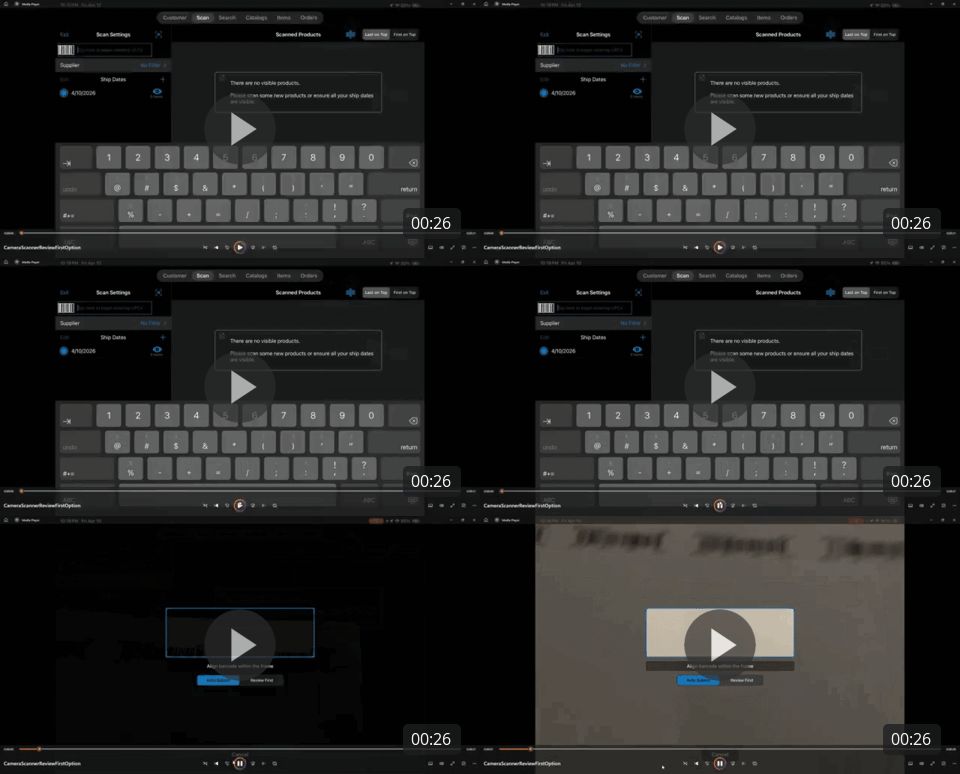
You can now scan valid UPC barcodes using your iPad camera.
To get started, tap the Scan button to open the camera. The first time you use this feature, you’ll be prompted to allow mtPro access to your camera, select “Allow” to enable barcode scanning.
If you choose “Don’t Allow,” the mtPro app will relaunch, and you’ll need to log in again. Don’t worry, your order will remain intact when you reopen it.
Note: This camera scan feature does not replace the existing mtPro scanner. It’s designed as a convenient alternative when a physical scanner is not available, allowing you to quickly capture items and place orders on the go.
You have the options to "Auto Submit" the captured item or "Review First" before the item is submitted.
Week of March 09, 2026
Version 1.623
Improved Validation Messaging
We enhanced the validation notifications for sales orders to better alert users when mandatory fields, such as Buyer Name, Shipping Phone Number, and Buyer Email, are missing during confirmation or exit from the order. This update ensures order writers are promptly informed of any issues, helping prevent orders from entering a bad state.
Bill To and Ship To Account Validation
When the Require Ship Number and/or Require Customer Number settings are enabled, mtPro will now enforce validation and prevent the order from being transmitted to the manufacturer if those fields are missing.
Once the customer’s Bill-To and Ship-To account numbers are entered in the web app, the user can tap Send again, and the order will be successfully transmitted to the manufacturer.
Manufacturer Bill To and Ship To Account Numbers Visibility
Users can now view the Manufacturer Bill-To and Ship-To Account Numbers directly on the sales order within the UI. Previously, this information was only available when sharing sales orders (print/email). With this enhancement, users can verify that these fields are correctly populated before submitting orders to the manufacturer.
Note:
Customer # refers to the internal number assigned to the customer by the rep group.
The Account Number is derived from the Rep Group–Retailer–Manufacturer (RGRM) relationship and is specifically associated with the manufacturer.
New Customer Toggle
The New Customer toggle will no longer be automatically enabled when no Bill-To or Ship-To account number is associated with the Rep Group–Retailer–Manufacturer relationship. Order writers need to manually enable this toggle for customers they identify as new to the manufacturer.
When the New Customer toggle is turned on, the setting to require the Bill-To and/or Ship-To account numbers will be bypassed.
Fixes
Resolved False Sync Issues
We resolved an issue where users were receiving an immediate, inaccurate “Successful!” message when initiating syncs. This fix ensures syncs complete properly on the first attempt, eliminating the need to run a second sync.
To verify that the sync was successful, check the Last Synced timestamp in the Device Profile section.
Fixed "Restricted Product Line" Issues
We resolved an issue that prevented items from product lines that “split” from being added to a pending order via the catalog.
We have restored the ability to add items on “restricted lines” to PENDING orders from Product Details, as well as removing the “Restricted Line” banner that scared people away from “Buying” them on the Search screen:
Week of February 02, 2026
Version 1.620
Improved Batch Order Selection
Order selection is now improved! When opening a sales order from the Find Orders screen, we are now taking additional measures to ensure that the order you tapped on is the order that is “selected” when the batch loads, reducing time and taps.
Improved Order Writing
Customer selection has been streamlined! When a user taps on a Customer Billing Record in the Customer List, if that Customer has only a single Ship-To and/or Contact record, the app will now auto-select these records. Also, you no longer need to tap twice to select a customer record; with a single tap, you can now select the customer record you want.
Order Settings Now Accessible Within the Order
Users are now able to edit their User Settings from within a sales order. Changing these values takes immediate effect and allows users to manipulate these settings throughout the order writing process to get the preferred behaviors from the app. Changing your order settings will affect current and future orders.
RGRM Billing and Shipping Account Numbers
Retailer Manufacturer Billing and Shipping Account Numbers are now processed and stored on mtPro. These values are now included on order print outs and emails generated from mtPro.
Week of December 18, 2025
Version 1.616
Improved Red Bar Error Handling
Users who encounter a situation where they may have to delete and reinstall the application should be greatly reduced due to a new feature that allows un-syncable orders to be purged from the device. MarketTime Support should be contacted before proceeding.
Find Orders Toggle
Devices in SHOW MODE will now offer a quick way for users to view their ROAD and WEB orders! This new toggle on Find Orders makes a quick call to the server and follows the standard ROAD MODE rules ensuring that users are granted access to only the orders they should be allowed to see.
Enhanced Promotion Selection Information
Promotions now display more relevant and useful information on sales orders. Selected promotions will now display only their name, however while browsing promotions in the picker, users will be able to see all relevant information about the available promotions.
PO Number Improvements
Added one-tap PO Number generation button, allowing users to quickly regenerate a PO Number. Also, Pending orders on the Find Orders screen now display a PO Number from one of its child order splits.
Week of December 08, 2025
Version 1.615
Use Ship To as Bill To
mtPro now supports the Use Ship-to as Bill-to functionality! Toggling this flag on a sales order will force the Billing Information on a sales order to mirror the selected Ship-to on all print outs and information sent to the manufacturer.
Users will need to manage this setting on an order-by-order basis; however, the application will prompt with helpful options to mitigate the effort required by the order writer to accomplish the desired outcome.
Red Line Error Prevention on Company Name
A new helpful validation warning has been put in place to notify users when the Company Billing Name or Shipping Name exceed the allowable limit on sales orders. This validation warning will be presented when exiting a sales order as well as on the Find Orders screen. Users, who have appropriate permissions, will have an opportunity to abbreviate the Company name(s) in a meaningful and helpful way that best suits the customer.
Red Line Error Prevention on Unknown Products
While creating Unknown or Custom Items on mtPro, users will now be prevented from exceeding the allowable length of the SKU, Name, or Note fields. This prevention will help alleviate order writers in the future from encountering red-bar errors when they inadvertently exceed the field lengths on any of these fields.
Edit Billing Address Improvement
While editing Customer Bill-To records, that have a matching Ship-To record, we will now prompt users asking if they want to update the Ship-To record as well as the Bill-To record. This improvement will prevent the shipping record from being unintentionally updated when the Bill-To record is edited.
Manufacturer Permission Flows to mtPro
The user permission to Edit Manufacturer Data will now flow down to mtPro. When this setting is DISABLED or READ ONLY, users will NOT be able to override product prices on mtPro.
Item Price Update on Pending, Quote and HFC Orders
Order writers with the appropriate permissions can now update item prices on orders in Pending, Quote, and HFC statuses. Previously, price updates were limited to Confirmed orders. With this enhancement, order writers will receive the most up-to-date pricing whenever a manufacturer updates an item’s cost. In addition, users will be alerted when an action may override their custom price, such as crossing a quantity break or volume pricing level, ensuring they can make informed adjustments before finalizing the order.
Item Unit Price can now also be modified on the Product Details view.
Week of October 27, 2025
Version 1.614
Grand Order Total Permission
Customer Advisory Board Top Priority Item
The visibility of the Order Total Sum on the Find Orders screen in Show Mode is now permission-based. The rep group’s main admin can choose which salespeople are allowed to view the grand order total. This permission is disabled by default for the salesperson and must be manually enabled as needed.
Salesperson Group
Salesperson Groups are now displayed on sales orders in mtPro! The enhanced Administrative Information section on the Order Detail screen now includes the Salesperson Group, when available. If the assigned salesperson belongs to multiple groups, users can easily select the appropriate group from a dropdown list.
Week of October 13, 2025
1.611 version
Enhanced Order Validation and Messaging
To ensure all orders meet required validations before submission, we have upgraded mtPro’s notification and messaging system. These enhancements provide clearer guidance to identify and fix issues quickly. New local validation warnings now help users correct errors and successfully post orders.
mtPro now validates:
Missing or overly long PO Number (new: >50 characters)
Missing Payment Term or Shipping Method
Invalid Credit Card setup
Missing mandatory fields: Buyer, Buyer Email, Shipping Phone
Missing Sales Location
Items without Line Items or with Zero Quantity
Unbroken Case Packs (EnforceCasePack feature)
Validation triggers:
When changing status to Confirmed (via Confirm All, Order Card, or Order Detail dropdowns)
When exiting a Sales Order
Pending Orders: No validation
Confirmed Orders: Full validation
Quotes/HFC: Checks for missing PO Number and broken case packs
When sending orders to Vendor (manual or Auto Send).
Reliable and Faster Pricing Updates
We have improved how product pricing files are created to make updates more accurate and significantly faster. All price types, base, volume, and code prices, are now generated together in one streamlined process, reducing errors and sync delays, especially for large agencies.
What’s Improved:
Complete Pricing Data: All price types are now included every time a full file is generated.
Fewer Errors: Fixed an issue where some pricing details were missing or removed during updates.
Faster Processing: Optimized system performance for quicker and more reliable pricing updates.
Impact:
You will now experience faster, more consistent, and fully accurate pricing updates on mtPro.
Week of October 01, 2025
1.610 version
Salesperson Manufacturer Support
Manufacturers directly assigned to a salesperson are now visible to that salesperson in mtPro.
Division Required
Sales Agencies configured with the Retailer Division - Salesperson Assignment Type will now require the DivisionID to be selected while creating or editing Customer Billing Addresses.
Unknown Product Quantity Editing
This improvement allows users to modify the quantity on Unknown (Custom) items on sales orders.
Fixes
Floating Keyboard Support
This fix resolves an issue where users who utilize the Floating Keyboard could potentially be prevented from viewing the full list of customers on the Bill-To search results.
Week of September 01, 2025
1.609 version
Closed Order Locked Screen
Closed (Complete) Orders in mtPro are now read-only. A lock icon will appear to indicate the order is finalized, and users will be unable to make further edits.
"Hide Future Dates" Toggle Removal
The “Hide Future Dates” toggle has been removed, as this functionality is now replaced by displaying availability dates in search results and showing a “Ship Date Conflict” banner when applicable.
Week of August 04, 2025
1.608 version
Repgroup Logo Added to Order Copy
mtPro will now include Rep Group logos on sales order copies and tear sheets.
Product Side Bar Displays Item History
The product side bar in Catalogs will now inform users as to if items displayed have been purchased previously.
Improved Navigation for Read-Only Orders
Read-Only orders now allow users to view order items more easily by allowing access to the Scan screen.
Retail Price Added to Sales Order
mtPro will now record the Unit Price and Retail Price for items when they are added to sales orders.
Available Date Assigned at Variant or Item Level
Items with Size Color Styles can now have Availability Dates assigned via the individual variants or at the Item level.
Edit Screen User Interface Issue Fixed
This resolves an issue where devices on iOS 18 would not display the Edit Ship Date screen properly.
Week of July 07, 2025
1.606 version
Seamless UPC Sync
UPC values are now included when transmitting and receiving order item data for improved integration and consistency.
Smarter Order Sharing
Sales rep information is now retrieved automatically before printing or emailing orders, ensuring more accurate order information.
Silent Sync Failures Eliminated
Fixed a potential issue where background updates to orders could silently fail.
Offline Order Creation Fixed
Resolved a problem that affected creating new orders, for new customers, while offline, which could prevent them from being written correctly.
Targeted Order Filters
The Find Orders screen now includes filters to show only un-synced orders or those that encountered an error during posting, making it easier to identify and resolve issues.
iOS 18 UI Polished
Resolved a display issue in the Orders View on iOS 18 where the status dropdown sometimes appeared detached from the field being edited.
Safer Sync & Logout
The app now safely cancels potentially long-running background tasks when users initiate a sync or log out, improving stability and preventing potential interruptions.
Week of June 16, 2025
1.604 version
Buyer Info Secured
Resolved an issue where some orders could lose their assigned buyer, which prevented them from being submitted successfully. Orders will now retain buyer information as expected.
Week of June 05, 2025
1.603 version
Item History at a Glance
Customer Advisory Board Top Priority Item
When adding products, the app will now indicate if an item has been previously ordered. History is based on Confirmed or Sent orders from the past 13 months.
"More Orders" in Customer View
Customer Advisory Board Top Priority Item
The Customer View now loads up to 13 months of Confirmed orders. Users can easily browse, select previously ordered items, or even start a new order from past purchases.
Search Smarter: Show Previously Ordered Items
Customer Advisory Board Top Priority Item
While searching, users can now highlight any items that were ordered by the customer in the past 13 months—making it easier to reorder frequently purchased products.
Better Price Handling
Customer Advisory Board Top Priority Item
Users can now recalculate prices when necessary, improving accuracy and flexibility when dealing with changing product pricing. Confirmed and Sent orders are also more resistant to pricing changes and will only update item pricing in certain scenarios when quantities edits cross a quantity break threshold.
Smarter Catalog Downloads
Customer Advisory Board Top Priority Item
Catalog downloading has been enhanced! Users can now select a download strategy that best suits their workflow—whether that means faster performance, reduced storage usage, or lower bandwidth consumption.
Easier PO Number Searches Now Include All Order Types
While online, the “Filter on PO Number only” option in the Find Orders search will now return both Road and Show orders when an exact match is found, even when the device is operating in Show Mode.
Improve Error Recovery
Fixed a potential issue where the app could have difficulty recovering after unexpected errors, resulting in a more stable and reliable experience.
Week of May 26, 2025
1.602 version
Default Item Notes
Customer Advisory Board Top Priority Item
We’ve made it easier to keep track of important item details! When your Sales Agency enables the Item Notes for Orders feature (this can be found by admins by clicking your name and selecting the Company Info dashboard), any item with a note will now automatically include that note on the order as a line item note.
You’ll see these notes right away when adding items to an order in mtPro, and they’ll also appear on your order copies—so you always have the information you need, right where you need it.
External Order Footnote
Customer Advisory Board Top Priority Item
Suppliers and Sales Agencies can now add custom notes that will appear at the bottom of sales order copies.
Whether it’s a reminder, special instruction, or just a friendly message—this new footnote feature helps you share important info with every order.
* Internal Customer notes will print in the footnote on apps.markettime.com as well ONLY for Salesperson and Agency order copies.
No Edit After Transmit
Customer Advisory Board Top Priority Item
To help maintain order accuracy, mtPro now supports the No Edit After Transmit setting. When enabled by your Supplier or Sales Agency, sales reps will no longer be able to make changes to an order once it’s been transmitted to the supplier.
This ensures orders stay consistent and avoids any accidental updates after submission.
Incremental Syncs
-
We’ve fixed an issue where searches using the contains filter might not return results for newly added Bill-To addresses.
Now, you’ll see accurate and complete results—even for the most recently added customers.
-
We’ve resolved an issue where updates to the Split By setting in ProductLine weren’t being applied after a sync.
Now, any changes made to this setting will sync properly, ensuring your order data stays accurate and up to date.
Week of May 5, 2025
1.6 version
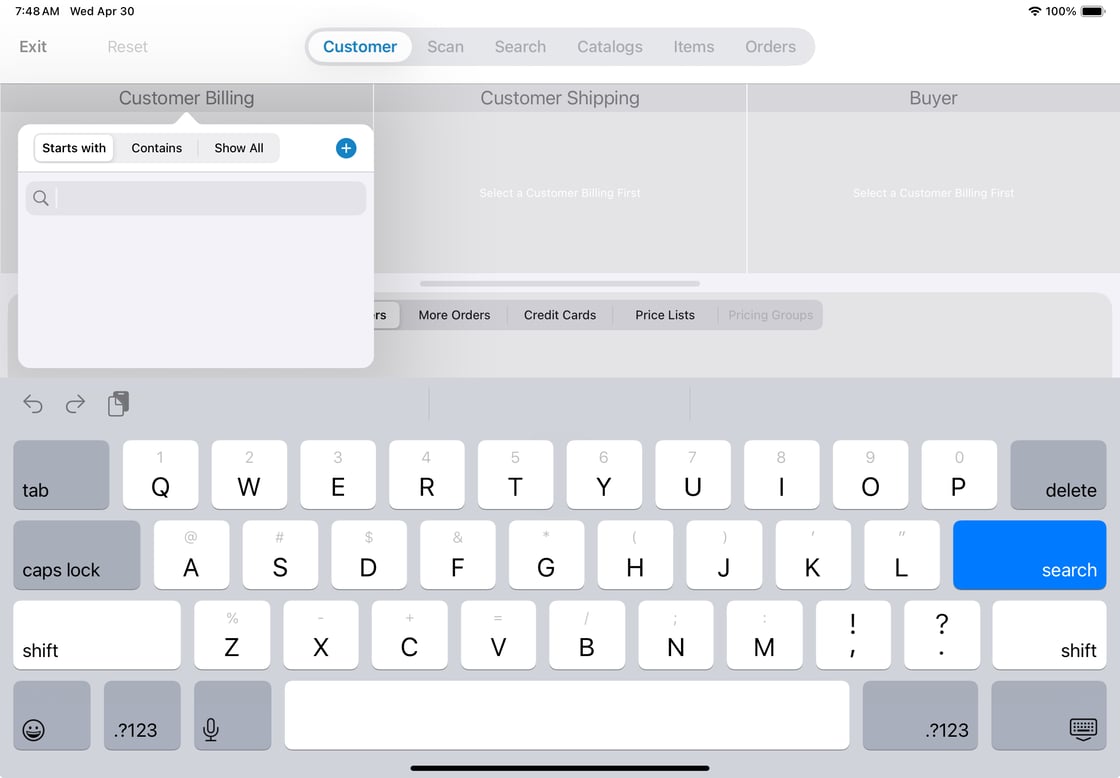
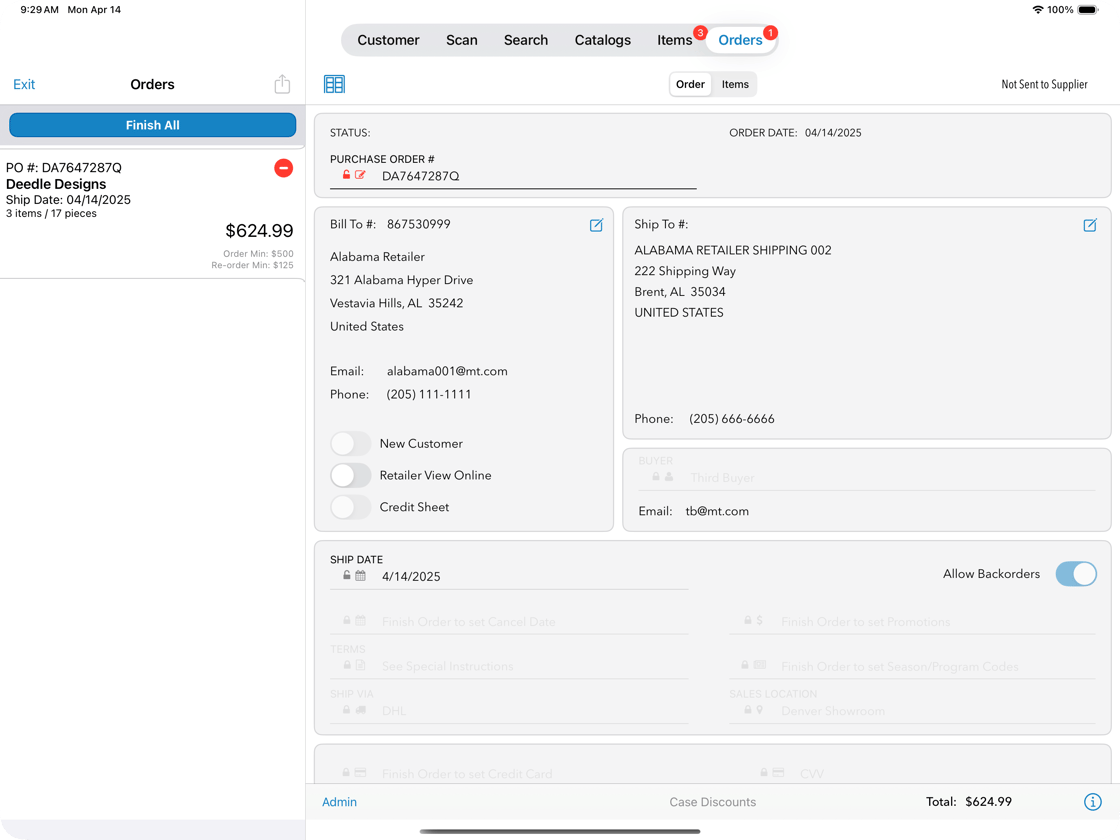
Along with some new features in the app, you will also see an important update by Apple to the look and feel of the "buttons" on your iPad. This UI improvement is part of the XCode16 released by Apple. Please see below for more details.
With Apple's XCode 16 update, the navigational buttons previously found along the bottom of the screen (often hidden by the keyboard) will appear as a floating navigation bar, always present and available even when an on-screen keyboard is displayed.
.png?width=1120&upscale=true&name=image%20(28).png)
Customer Advisory Board Top Priority Item
Customer Advisory Board Top Priority Item
- Added back the ability to edit confirmed, sent to vendor orders. As always, any updates made after an order has been sent to the vendor must be communicated to the vendor manually.
- Added back the ability for a Salesperson to delete a customer's credit card from Customer > Credit Cards tab when selecting a customer for an order, or directly from a sales order.
- Additional improvements to the "Find Orders" filter.
- Added a toggle option to automatically send orders to the vendor upon exit of orders vs. having to click a 'send to vendor' button on every order. When toggled on, all orders (or batches of orders) will be sent to the vendor automatically, as soon as they're confirmed.
Incremental Syncs
Incremental Syncs
- Fixed an issue associated with a child order being Sent to Vendor before the parent order. The issue made it look like orders were lost because the child order became disconnected from the parent.
Scan Speeds & Latency
Scan Speeds & Latency
- A scanning fix that limits results to the assigned Suppliers.
Additional Items
- Added a filter for systems containing over 350,000 products that hides the Browse All button on the product search screen. The result is a much better overall performance.
- The masking of CVV values on the sales order for PCI compliance.
If you have your iPad set to receive automatic updates, the app will refresh on its own within the next week. If you manually update your iPad applications, you will be able to access mtPro 1.6 in the iPad Apple Store later today.
Week of April 21, 2025
1.546 version
📥To get immediate access to these improvements, please head to the App Store on your iPad and download the latest version 📥
CVV Will Not be required for mtCharge+ Orders
For mtCharge+ orders, Order Writers will not need to enter a CVV for credit cards. The CVV field on the "Payment Info" page will be hidden for these transactions. This update has already been made on the MarketTime Web Portal (https://apps.markettime.com/login). [1362]
Incremental Syncs
Incremental Syncs
-
Addressed Potential Issues that could cause mtPro to crash when:
- Submitting local changes to the server
- Syncing customer updates from the cloud [1365]
- Quantity on Hand: Resolved a syncing issue that previously prevented ProductUPCQOH (Quantity On Hand) records from updating correctly under certain conditions. [1363]
Week of April 14, 2025
1.545 version
Incremental Syncs
Incremental Syncs
-
Fixed a caching problem: To enhance the application's performance, we utilize cached records for various features within the app. However, these caches were not consistently flushed at the right times. By running a sync, we can pull in data changes and ensure that cached data is cleared appropriately, allowing any updated information to be accurately reflected in the application. [1353, 1354]
- What is a "cache"? On an iPad, a cache is temporary storage for website data, app data, and images that is used to improve performance and speed up loading times.
Scan Speeds & Latency
Scan Speeds & Latency
- Speed, Accuracy, and Memory Stability: We are enhancing data syncs to make them faster and more reliable, allowing you and your sales reps to spend more time selling and less time waiting for your iPad to sync and download data. Time spent processing should be reduced, and memory will be optimized, particularly for older devices and large datasets. [1296]
- Better Handling for Large Data Sets: Scanning speeds have seen remarkable enhancements, now reaching 2 to 4 times faster rates, contingent on the specific hardware utilized. These advancements are particularly notable when handling large data sets. [1351]
- Better Handling for Price Codes and "Use Best Pricing": Customers with a large number of Pricing Codes and "Use Best Pricing" enabled will enjoy faster speeds when confirming orders and scanning items. [1338]
April 7, 2025
1.544 version
Incremental Syncs
Incremental Syncs
- Sync Speed Optimization: The procedures that transfer data to and from mtPro have been optimized to deliver faster and more reliable syncs. [1280]
- Improvements to Prevent Sync and Login Outages: On Friday, September 20, 2024, users experienced login and syncing issues due to high database usage, resulting in an outage. A query from AWS overloaded the database server. This work ensures users can successfully log in to the mtPro app or sync their devices. [1172]
- Load Testing Improvements: We have enhanced our systems, enabling us to test multiple sync queues more efficiently. [1012]
- 😢Emoji Support: We ❤️ emojis just as much as you do and regret to inform you that emojis will no longer be supported in the order and item notes fields 😞 because we have determined that their use causes order-level errors and prevents orders from syncing to the cloud. [1335]
Scan Speeds & Latency
Scan Speeds & Latency
- Scanning Items for Unapproved Manufacturers: This fix resolves an issue when a Manufacturer License with limited manufacturer access attempts to write an order. The application allowed users to scan items for manufacturers they were not authorized to see or sell. This fix ensures manufacturers can only sell items for their approved manufacturers. [1295]
- Scanning Barcodes Shows Duplicate Items to Choose From: When scanning ssiBarcodes, users were presented with a pop-up asking them to select between two identical items. The fix ensures that the product is added to the order instead of prompting the user to choose between two results representing the same product. [1309]
Additional Items
- Promotions and Discount Override Improvements: When a promotion is applied to an order on mtPro, a pop-up allows the user to "override any current discount with this promotion discount." This pop-up is being removed. No promotion with a discount should be added to an order without affecting the total price of the order. [1318]
- Size Color Style: We have resolved an issue where it was sometimes possible to have an item with SCS (Size Colort Style) added to an order without the required SCS variant information. [1326]
- Sorting of Items on Orders: The order in which items are displayed on orders was disorganized and lacked a logical sequence, resulting in frustration for anyone receiving order copies or trying to locate items based on when they were added. This fix will ensure that the sort order of the items is maintained. If the user selects “Sequence” as the sort order, items should appear in the order they were added. [1234]
Future Versions
- Terms and Conditions for Payments: Terms and conditions will be added to the payment information page to ensure compliance with PCI requirements for tokenizing credit card information. To learn more, please visit this article MarketTime Cloud and Mobile App Release Notes (2025). [1299]
February 12, 2025
1.543 version
Fixed
Empty Order Details View
- Issue: The "Order Details" view would occasionally appear empty for some users in the mtPro application.
- Fix: This issue has been resolved, and the fix will be deployed with the mtPro version 1.543 update
Multi-Agency Use Cases
- Issue: Users were having application issues when writing at different shows or across multiple agencies
- Fix: We have improved support for multi-agency functionality, enabling smoother operation on devices used across multiple agencies. This fix will be deployed with the mtPro version 1.543 update
Sync Crash
- Issue: Some users were experiencing repetitive crashes during a sync.
- Fix: Upon investigation, we determined the sync failures were caused by corrupt catalog data. This issue has been resolved, and the fix will be deployed with the mtPro version 1.543 update, ensuring greater stability.
December 5, 2024
1.541 version
Find Products
- The "Find Products" function will now display a limited set of results at a time, enhancing user navigation and performance
Improvements
- Enhanced the speed and functionality of “Find Products”
- Improved sync stability, allowing for better recovery from interruptions
- Upgraded Multi-Agency support for a more seamless experience
Fixed
- Addressed issues related to Supplier limitations
November 4, 2024
1.539 version
Fixed
- Resolves an issue where attempts to login were not displaying an error message to the user
- Resolves an issue where customer names with non-standard spacing were being altered
- Resolves an issue where devices in Show Mode will once again be Auto-Sending orders to the cloud
October 16, 2024
1.538 version
Find Orders
Find Orders will now refresh the results displayed when users update the selected statuses
1.537 version
Find Orders
Find Orders will now only show the Order Total Sum for SalesPersons while they are in Road Mode.
October 14, 2024
1.536 version
SCS - Scanning Item with Size Color Style
Scanning a UPC for an item with Size Color or Style will now move users directly into the SCS GRID view for immediate QTY entry on the specific desired variant.
Sync Data Button
The Sync Data Button will now be DISABLED until all of the local changes have been successfully POSTed to the cloud. Users should expect to tap the SendData button until the SyncData button becomes available
October 13, 2024
1.535 version
SCS - Fill Down Feature
While using the Size Color Style grid, users are now able to cascade their changes to populate multiple selections more efficiently based on the currently selected row.
Autogenerated PO Numbers
System generated PO Numbers are now more concise! PONumbers will now be easier to read, write, and remember! The formula for this new PO Structure will incorporate the user defined POPrefix (or initials), followed by a 7 digit random number, and a random letter.
Allow Backorders
The default for this settings is now ON. Users can now OPT-OUT when necessary by toggling the switch to the OFF position on the Orders tab of a Finished Sales Order.
Reset for Full
After being reset for full, devices will now be directed to refetch all Pending or Finished orders appropriate for the device. This should assist in the recovery of any orders that were not displaying for the user.
Fixed
- Resolved an issue where users were potentially unable to finish sales orders.
- Resolved an issue where Find Orders was dismissing the modals, preventing users from entering some values like the custom date range.
- Resolved a crasher in the SCS grid after removing items.
- Resolved an issue in the SCS grid where SCS prices could be overwritten.
- Resolved an issue in the SCS grid when failing to satisfy the minimum quantity the spinner continued spinning.
- Resolved an issue when leaving the Search screen with a large set of results that was affecting performance.
- Resolved an error message that was presenting a bad URL.
- Resolved an issue where the Search On Command feature was not triggering a search when the user hit “Search” on the keyboard.
- SCS items will now print the correct UPC values immediately after they are written.
- SCS grid will not be visible from Catalogs in Present Product.
October 4, 2024
1.534 version
Size Color Style Grid
Users are now able to utilize the Size, Color, and Style data for items in a straightforward and user friendly design. The new Size Color Style Grid displays the various combinations of Size, Color, and Style for items in a way that is easy to read and can be modified individually, by row, by column, or all at once! To access the new grid, users should email Support at support@markettime.com and request that all Pro licenses be reset for a full sync. Please use "Product Options-Reset for Full" as the subject line of your email.
When provided, Availability Dates for specific variants are displayed and are enforced based on the Supplier settings.
Specific prices can also be established for individual variants and are shown in the grid when toggled.
Find Products
A newly refreshed Product Search screen awaits users in our new version. The new cells are cleaner and more performant, allowing users to see the necessary information easily and quickly take action “Liking”, “Buying”, or accessing additional information from Product Details. We now also offer a more image centric view on the Product Search for users who benefit from seeing more than just a thumbnail.
Fixed
- Resolved an issue where there was a delay selecting Customer Billing records when starting a sales order
- Resolved an issue on Find Orders where toggling the PO Search type did not immediately execute the appropriate API call
- Resolved an issue where selecting or switching between Catalogs in Present Product was doing unnecessary work
September 20, 2024
1.533 version
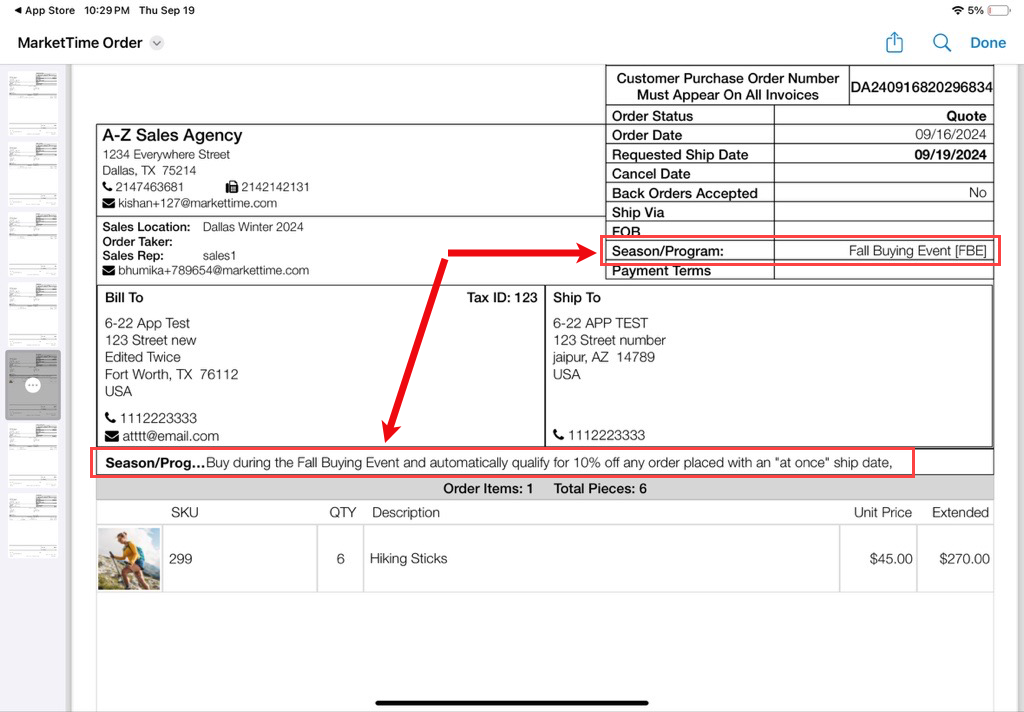
Seasons/Programs
MarketTime Pro will now allow a user to select a Season/Program code on the order header. This is consistent with the Season/Program field on the sales order in apps.markettime.
Order Header
Order Copy
Fixed
- Resolved an issue where orders would be put into a Read-Only state and would not allow any additional edits to be made.
- Resolved an issue where the product search bar was not displaying when using MarketTime Pro in portrait mode. The left-hand side with the Search options will now properly display when viewed in portrait mode.
- Resolved an issue in Present Products where the Supplier filter was not properly filtering to the selected Supplier.
- Resolved an issue where when adding a Customer, the editor would close abruptly forcing the user to re-enter all the information again.
- Resolved numerous crashes throughout various areas of the application.
August 9, 2024
1.528 version
Search on Command
A new setting has been added which will allow a user to opt-in to require the user to tap a Search button prior to the system searching the text entered. Previously, the system would have a slight delay before searching the entered text which can become frustrating or problematic when searching for SKUs for a manufacturer with a large product line. The setting will be off by default. If a user wishes to enable this setting they may refer to the instructions below.
On the login screen of MarketTime Pro, tap the Settings ⚙ in the lower right corner.
Scroll to the bottom and toggle the "Search on Command" setting on.
When in a sales order on the Search tab, the full search text can be entered and, if using the on-screen keyboard, tap return to search for the entered text. Otherwise tap the Enter or Return button on your Bluetooth keyboard to search the entered text.
Min/Mult Qty Override
The Minimum and Multiple for an item can now be broken or overridden if the Manufacturer is configured with "Can Break Case Packs" enabled. MarketTime Pro will not require an item with a Min of 12 and a Mult of 6 to be ordered with at least 12, and will not require the value be divisible by 6. For example, the quantity of 4 would be accepted.
Customer Editor - Default to Notes
Prior to version 1.528, editing a customer billing record would show a section on the right for "Flags". This contained settings not relevant or available in MarketTime. It will now default to the Notes section on the right-hand side of the customer billing editor.
Fixed
- Fixed an issue where upon opening an unsynced order the system would begin syncing the order and the progress bar would block the order navigation buttons at the bottom of the screen.
- Fixed an issue when scrolling through larger, high-res catalogs the application would crash.
- Fixed an issue where a license limited to a specific manufacturer would have visibility to other manufacturers orders if the order that was opened was part of a larger batch of orders. The system will now ONLY show the orders that the user should have limited visibility to.
- Fixed an issue where the order did not present itself properly if opened up while the iPad orientation was in portrait. The Search screen will now show the Search bar on the left and the Order screen will now show the orders rather than a blank screen when first opened.
July 11, 2024
1.527 version
New Prompts and 'Requires Credit Card' Notifications
With this new feature, MarketTime Pro will provide a prompt and 'requires credit card' notification for the order taker to take action when selecting a payment term flagged as a credit card. For example, if you select American Express, MarketTime Pro will recognize that you have selected a credit card and will pop up with the necessary information to input the credit card details, or CVV if the credit card information has been captured previously. This will not prevent a user from exiting the order, however, they will not be able to submit the order until the credit card information has been input.
Catalogs Sort By 'Supplier Name' & 'Catalog Name' in Present Product & Sales Orders
The sort order for digital catalogs in MarketTime Pro has been improved and should now be consistent across sales orders and within the Present Product screen. Catalogs are organized by supplier first, then catalog name. This improvement has been made so that users can easily find the catalog they need to use at any given moment.
Catalogs For Inactive Suppliers No Longer Appear In Present Product
MarketTime Pro will no longer show any digital catalogs for any suppliers that have been marked as Inactive Suppliers in your system.
Scanning for Products in Present Product Follows the 'Active Only' or 'Show Inactive' Selection
MarketTime Pro will only search for products within Present Product according to whether you've selected to search within 'Active Only' or 'Show Inactive' products. With this improvement, when trying to verify that everything is scanning as it should in your showroom before a market, you will easily be able to identify which products have been marked as active vs. inactive.
Changing Product Quantity Using the + and - Buttons
Previously there was a lengthy delay when you tried to tap the + or - buttons to change the quantity of an item you have selected. With this latest improvement, the responsiveness has been improved to reduce any delay and make the device immediately responsive to your selection. Please note that to remove an item, you will still need to select the 'Remove Item' button since the lowest quantity for a selected product will be 1.
Incremental Syncs Prevent the Device From Going to Sleep
Running an incremental sync can be a lengthy process depending on the size of your company or whether it has been more than 21 days since your last sync. If it has been more than 21 days since your last sync, MarketTime Pro will automatically prepare your device for a full download.
This improvement prevents the iPad from becoming idle or trying to go to sleep when running an Incremental Sync, or when installing the MarketTime Pro app initially, to reduce any chance of disrupting the sync from completing its process.
Fixed
- Resolved an issue where selected shipping methods were showing twice.
May 31, 2024
1.523 version
Manufacturer License Support
MarketTime Pro now supports a manufacturer license. This would typically be a license that is allocated to manufacturer users that attend market and wish to write orders. These licenses have historically limited the visibility within the application to data from the one manufacturer. In MarketTime, the manufacturer users can be limited to one or more manufacturers (handy for those Sales Managers that represent more than one brand in your showroom).
Configuring a Manufacturer user is super simple. Please follow the below steps to set this up:
- Add the user as a Salesperson under the Rep Group
- It's important they are added as a Salesperson as this will allow them to be limited to one or more manufacturers
- On Step 1: Be sure the Email that you enter is a valid email for the individual as this creation will trigger an email to the user and will allow them to create a MarketTime login associated with the Salesperson.
- On Step 2: No need to assign a Division or Territory. Click Next
- On Step 3: A Commission Rate is required before clicking Finish. Recommendation is to select only the manufacturer(s) from the list that the manufacturer user works for. Set a Commission Rate of 0. Click the + to add the rates.
- Click on the Salesperson to make edits and navigate to the Manufacturers tab
- If the desired manufacturers were selected when creating the manufacturer user, this tab should already have the manufacturers listed
- If no manufacturers are listed or not all manufacturers for the user are selected, assign the manufacturers to the Salesperson record.
- If the desired manufacturers were selected when creating the manufacturer user, this tab should already have the manufacturers listed
- Assign the Salesperson (manufacturer user) to a MarketTime Pro license
- Click the pencil to edit an available MarketTime Pro license
- Choose the Salesperson from the dropdown list*
- Choose a default Order Code (Sales Location) for the license
- Click the ✔ to save the assignment
- Check the box for Manufacturer License
- Optional: Check the box for Show Mode (if this is for Show, check this box)
*If the Salesperson does not display in the list to assign to the license, the Salesperson does not yet have a MarketTime user linked. Double check the email address that was used on the Salesperson to ensure it is correct.
Once the user has installed the MarketTime Pro application, the data contained within will be limited based on the configuration.
iOS Version/MarketTime Pro Version captured
When using the MarketTime Pro application the system will automatically detect if either the iOS version or MarketTime Pro version has changed and will update the server if so. This is useful for those managing the salespeople and ensuring the salespeople are staying on top of updates. The iOS Version and MarketTime Pro version are listed on the MarketTime Pro license management screen.
Auto Send Orders Setting
When writing orders while online the system will now determine whether the user has Auto Send Orders enabled or disabled and, based on the setting, will automatically send (Sync, not send to the manufacturer) the order or not. If Auto Send Orders is disabled, orders will be sent to the server when the user hits Sync Data -> Send Data.
Price Code/List Visibility
When selecting a customer to start a sales order, the Price Lists tab will now display the assigned price list per manufacturer for the selected customer.
At this time, the Price Code/List assignment must be done within apps.markettime. The Price Lists tab in MarketTime Pro is just to provide visibility to the user.
Added Quick Navigation buttons to Product Detail within Catalogs
The Quick Navigation buttons added with the last release were not available within a catalog. Now when ordering through a catalog the Product Detail screen will have the < and > arrows to allow the user to quickly navigate between the items on the given catalog page.
Add Future Dated Product within Product Detail
The Product Detail screen will now properly add the needed Ship Date and assign the product based on the product's available date (Default Ship Date) and the manufacturer's configuration (Split by Available Date = true, Override Available Date = false). Previously the application would have informed the user the product was not available until xx/xx/xxxx and the user would have had to manually add the Ship Date.
Buy Button Disabled in Present Products
While viewing a catalog in Present Products and tapping on hotspots, the Buy button has been disabled. Present Products is intended for a user to make a selection of products to create an order using and does not involve quantities.
Available Date/Quantity on Hand Updates
The Available Date and Quantity on Hand (QOH) for products will now accurately reflect what the product has in apps.markettime. Previously the application was holding onto old values which was causing the updated information not to display.
Settings Removed from Customer Editor
The settings below have been removed from the Customer editor. These settings were removed to avoid confusion as MarketTime does not have a place to save these customer-specific configurations.
- Restricted
- Accepts Back Orders
- Print UPC Number on Sales Order
Fixed
- Fixed an issue when browsing Categories in Present Product the Manufacturer name displayed at the top would be incorrect.
- Fixed an issue in Present Products where the Manufacturer name displayed on the Selected Items screen would be cut off and the full name would not be displayed.
- Fixed an issue where a Pending order that was opened would show the Product Line as locked even though no Product Line was selected.
- Fixed an issue where the application would crash when a Category was selected in Present Products.
- Fixed an issue where not all catalogs were visible to a user while in Present Products.
- Fixed an issue where the application would crash when exiting a Sales Order after having viewed Categories on the Search screen.
- Fixed an issue where tapping the Sync Data button wouldn't consistently start the Sync.
- Fixed an issue where the Last Sync Date on the login screen was not properly showing/updating.
- Fixed an issue where a watermark was present while viewing Catalogs.
- Fixed an issue where the application would crash when selecting a Catalog, while the Catalog Pages would be downloading.
- Fixed an issue where the hotspot border would not properly display green after having added an item contained within the hotspot.
- Fixed an issue where certain settings would not be updated properly. This included settings such as Spit by Product Line, Override Available Date, and Split by Available Date.
- Fixed an issue where the Categories displayed in Present Products were not sorted the same way within a Sales Order.
Coming Soon: Image Downloader
In an up-and-coming release users will have the ability to download product images manually without having to go and search the items for the system to automatically download the images for. This is similar to the function in the old Brandwise application and serves as a great way to ensure the application has images while a user may be out on the road with limited internet availability.
April 18, 2024
1.522 version
Fixed
- Fixed a crash occurring when opening an order containing Unknown Items
- This would also crash if an Unknown Item was added to an order being written in MarketTime Pro and then the user navigates to the Orders
- Fixed an issue where tapping Logout would cause a delay between the tap of the button and the application actually logging out
- Fixed an issue related to a recurring crasher
April 11, 2024
1.521 version
Transmit Orders
MarketTime Pro will now support transmitting orders to Manufacturers directly from the device. To send an order, simply add the required fields to the Sales Order (Shipping Method, Payment Term, Credit Card, Sales Location/Order Code) and change the order status to Confirmed. Once the order is Confirmed there will be a Send To Vendor button in the top right of the order.
Tap this to send the order.
Customer Changes Visibility
A new menu option was added to the dashboard to allow for easy visibility into Customer changes, as they may relate to preventing the Sync from running.
While the Customer Changes menu will most likely be empty when opened, in an instance where the Sync will not run due to changes that are not obvious, this will help significantly. If there are customer changes that have not successfully synced off the device, the specific changes will be listed, and if an error occurred during the syncing of the data, the error will be displayed as well.
In the example above, I have a credit card change that did not successfully sync off the device. The reason it did not was because the sending of the data took too long and the process timed out. This is just to provide an example of what you may see but this provides more visibility to Customer changes than the MarketTime Pro application has had prior. Tapping "Save changes" in the top right will attempt to send the customer data once more. Upon success, there should be no customer changes in the pop-up.
Catalogs in Present Products
Catalogs will now be viewable in Present Products.
Navigating through a Catalog and tapping a hotspot, the Product Detail will display. As Present Products only allows you to "like" items, the Buy button is disabled when in Present Products.
Quick Navigation through Products
A new tool has been added to the Product Detail that allows a user to navigate between products and quickly spot check or adjust quantities without having to jump between the Product Detail and Search/Scan/Catalog, etc. While in Product Detail tap the < or > arrows to navigate between items.
The navigation will change based on what screen a user is on.
- Selected Items (as seen above) will navigate through the Selected Items in the current sort
- Search will navigate through the items (whether on the order or not) as they are displayed in the Search list
- Scan will navigate through the list of items on Scan
- Catalogs will navigate through the items on a given catalog page*
*Catalogs will have the item navigation in the next release as this was not included in version 1.521.
Ship Date Management in Product Detail
The Product Detail will now allow a user to manage (add/remove) Ship Dates on a Sales Order without having to add the Ship Dates from the Scan screen. This enables the user to remain in one view, manage the Ship Dates and assign items to their desired Ship Dates. Below shows an example of adding a new Ship Date, navigating to the next item in Search and assigning the new item to the newly added Ship Date.
Need to remove quantity on a given Ship Date? This allows a user to easily remove an item's assignment to a given Ship Date as well.
Below is a guide to the icons showing in the Ship Date management window.
Multi-Product Hotspot Support
MarketTime Pro will now support ordering from a hotspot that has multiple products linked to it. When the hotspot is tapped, a menu will display listing the products contained within the single hotspot.
Selecting an item will then allow for quantity to be added and adjusted.
Available Date / Split by/Override Setting Support
The Available Date for products will now display within the application, and, depending on the Manufacturer's configuration in MarketTime, will split by the Available Date or add to whatever the desired Ship Date is.
The products above have availability on 4/30 and 5/7 for the Outdoorsy manufacturer, and 6/11 & 6/30 for the Little Duckling manufacturer. When I add all these items to my order, the order now shows four order splits.
The Little Duckling items were all added to an ASAP order as Little Duckling does not split by the available date. Outdoorsy has three order splits. One for the ASAP items. One for the 4/30 shipment and one for the 5/7 shipment, as Outdoorsy does split by available date. Changing the Ship Date on the 4/30 order to 5/7, the orders will merge into one.
Sync Stability
There are a lot of changes to the Sync in this version of MarketTime Pro. The intention has been to make this process more reliable. Syncs will continue to be a priority but this is a huge step in the right direction.
Fixed
- Resolved a problem where if Sync data was tapped while the device was offline the Send Data icon would show as processing but nothing was actually happening. The user would have to quit the app and relaunch it to get out of that state.
- Resolved a problem with the "Disable Quantity Pricing" toggle on the order header where disabling the Quantity Pricing was not actually doing anything.
- Resolved a problem with Pending Orders where the icon displayed to indicate the order needs to sync off the device did not get removed correctly.
- Resolved a problem where the Country list was not sorted alphabetically when manually entering the Billing Address for a Credit Card. United States and Canada will still be sorted at the top as these are the commonly used countries but the rest of the countries will sort alphabetically.
March 18, 2024
1.518 version
Default to Show All in Search
A new User Setting has been added to allow a user to opt-in to defaulting Show All on when in Search orders. This setting is defaulted to Disabled. To enable, tap the settings cog on the Login screen of MarketTime Pro.
Under the SEARCHING FOR PRODUCTS section, toggle on Show All.
When writing a Sales Order and selecting a Manufacturer on the Search screen, Show All will enable itself and all products for that Manufacturer will display.
Refresh Customer List on-demand
When searching for a customer to start a Sales Order, you can now pull down the Customer Billing list to refresh the list of available customers. This does require the iPad to have an active internet connection in order to use this feature.
Find Orders in Road Mode
When going into Find Orders in Road Mode, MarketTime Pro will now retrieve orders from the cloud just as it does when the device is in Show Mode. Unlike Show Mode, the orders displayed and retrieved from the cloud will only be those that a given Salesperson should have visibility to. This will help to resolve a common problem where users are unable to find an order that was written in the MarketTime web app. This does require the iPad to have an active internet connection in order to receive the additional orders.
Improvements to Product Lines
Product Lines are now supported in the same way they are in the MarketTime web app. There was an inconsistency to how the two applications were handling Product Lines before and now that gap has been closed.
Unique PO Numbers
In previous versions it was possible that some PO Numbers would be exactly the same depending on how the Products were added to generate the individual orders. The PO Number has been slightly changed to ensure uniqueness across the board.
Check for a blank PO Number
There were several instances of orders where the PO Number had been unintentionally removed leaving the order without a PO Number. If a user accidentally (or intentionally) deletes the PO Number, the user will be prompted to enter a PO Number before exiting or when attempting to Confirm the Sales Order.
Attempting to exit the order
Attempting to Confirm the order
Additional Country Support when adding Credit Card
When adding a credit card to an order, all countries are now available in the list to select.
Fixed
- Fixed an issue where the application would crash when the Payment Term, Shipping Method or Sales Location pop-ups were open and a user tapped Exit to exit a Sales Order.
- Fixed an issue where the application would crash when a hotspot was tapped that had a deleted item linked to it.
- Fixed an issue where the Unsynced Order count at the bottom of Find Orders was not properly refreshing.
- Fixed an issue where the MarketTime Pro application size would grow substantially following each successful sync.
- Fixed a misspelling of Product within the User Settings.
- Fixed an issue where the Country values were incorrect when tokenizing a credit card.
February 19, 2024
1.516 Version
Fixed
- Fixed an issue where when attempting to add a credit card, the State field would not be populated. This is corrected in this version once a Sync has been ran.
February 12, 2024
1.515 version
Login Screen Messaging
When attempting to login to MarketTime Pro we will now report more useful errors if a user is unable to login to the application.
Create Order/Customer Selection
Some improvements have been made to make the Customer selection slightly faster than it was prior.
Mandatory Sales Location
When attempting to Confirm a sales order, or exit an HFC/Quote order in MarketTime Pro, the system will not inform you that the Sales Location is mandatory and will not Confirm/exit the order until a Sales Location is applied.
Attempting to Confirm:
Attempting to exit the order:
Opening Deleted Sales Orders
Prior to version 1.515, opening an order in MarketTime Pro that had been deleted in the MarketTime web app would result in an order that would never sync off the device. Now when opening an order that has been deleted in MarketTime Pro the system will inform you the order is deleted and no changes can be made. Once the order is closed the order will be removed from Find Orders.
Order Sync Status Bar
When exiting sales orders where changes have been made, a progress bar will now display at the bottom of the screen showing the progress of the orders getting sent to the cloud.
Sales Order -> Catalog Selection
Made some improvements to the Catalog selection screen within the Sales Order. Previously an issue would occur where when selecting a Catalog, the catalog image showing on the right hand side of the screen was not reflecting the currently selected catalog. It appeared to be stuck. Should an issue arise retrieving the Catalog PDFs, the catalog selection will now resemble the below. Tapping Try again will attempt to download the catalog PDF once more.
Fixed
- Fixed a crash that would be encountered if an Inactive product hotspot was tapped within a Catalog.
- Fixed a crash that would occur when navigating through a Catalog and landing on a page containing certain data.
- Fixed a crash that would occur if a Promotion was being applied to a Sales Order and the Promotion had a special Shipping Method to apply.
- Fixed an issue with the Ship Date not properly getting updated in Pending Orders.
- Fixed an issue where customers that were inactive and had been reactivated in the MarketTime web app were not getting updated in MarketTime Pro.
- Fixed an issue when adding a credit card to a sales order and manually entering in the address. State was not a requirement at the time of adding.
- Fixed an issue where when viewing the product detail for one item, followed by another, then another, etc. the application's memory would climb and eventually crash the app.
Coming Fall 2025
Credit Card Terms and Conditions Agreement
We are updating our card-capture process to improve compliance and security. Soon, Sales Agencies will be required to obtain the cardholder’s consent to accept the credit card terms and conditions before saving a card and completing an order. Clicking the highlighted terms and conditions text will pop up the terms and conditions page.
If a new card is entered and the "Save Card to Retailer" option is selected, the agreement will be stored, eliminating the need for future consent for that card. However, if the card is not saved, the terms and conditions must be accepted each time it is used for an order. The agreement will only need to be obtained once for existing cards in the system.
For MarketTime mobile app users, syncing your device will be necessary to receive this update when it is released. Failure to sync may result in errors when saving credit card details.
View the Terms and Conditions agreement here Tokenization Credentials on File Cardholder Agreement.