We appreciate everyone's excitement for this new feature, but Shopify integration is still in limited rollout for testing. It is not a feature currently available to everyone. This article is for retailers who are currently testing this feature. There will be a separate announcement in the future when this is available for all retailer accounts. We are excited to share this feature with everyone as soon as it is complete. We are not currently accepting requests for new testers.
Viewing Your Shopify Inventory and Order History on MarketTime B2B Storefronts
If your retail business uses Shopify, you can now see your real-time on-hand inventory counts and recent order history directly on your MarketTime B2B storefront. No more toggling between Shopify and MarketTime to check stock levels before placing a reorder.
What's New & Why We Made This Change
Retailers connected to MarketTime via a Shopify integration can now view inventory and past order details right where they shop: on product pages, in digital catalogs, and in their shopping cart. This gives you instant visibility into what you already have in stock so you can make smarter purchasing decisions without leaving the B2B storefront.
Key benefits at a glance:
- Smarter Reordering: See your current total inventory and location-level stock before adding items to your order, helping you avoid over-purchasing or stockouts.
- Instant Order History: Quickly check when you last ordered and received an item to make informed reordering decisions.
- Variant-Level Visibility: View stock levels for specific sizes, colors, and styles (SCS variants) directly in product tables.
- Seamless Experience: Inventory data appears automatically for mapped products, with no extra clicks or navigation.
How It Works
Product Detail Pages
When you open a product that is mapped to your Shopify integration, you'll see new inventory and order history fields displayed below the product's Ship Date:
- Total Inventory: Your total quantity on hand across all of your Shopify locations.
- Location Inventory: The specific quantity available at each of your individual store or ship-to locations.
- Last Order Date: The date you last ordered this item (based on transmitted orders).
- Last Order Ship Date: The date that last order was shipped.
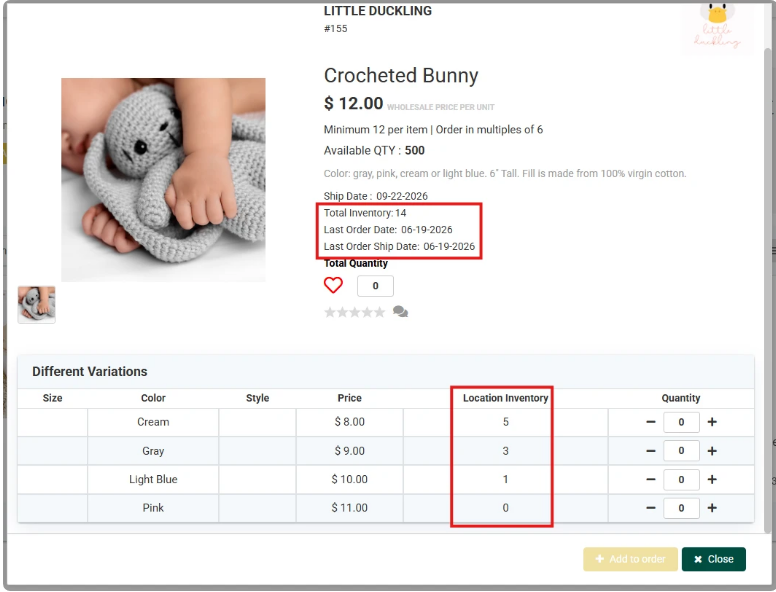
For products without size, color, or style variants, these fields appear directly on the product detail view beneath the ship date.
Variant Products (Size, Color & Style)
For products that come in multiple variants (e.g., different colors, sizes, or styles), inventory information appears in a dedicated Location Inventory column within the Different Variations table. Each row shows the quantity on hand at your location for that specific variant, so you can see exactly which colors or sizes you're running low on before reordering.
Cart Sidebar
When you add mapped items to your shopping cart, your inventory and order history details carry over into the Cart Details slide-out sidebar. Each item in the cart displays:
- Ship Date
- Total Inventory
- Last Order Date
-
Last Order Ship Date
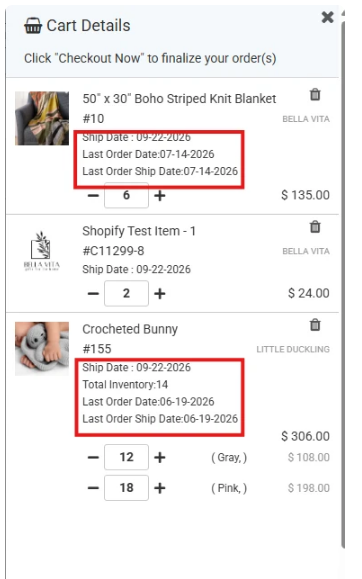
This lets you do a final gut-check on your current stock levels before clicking Checkout Now.
What You Need
This feature requires an active Shopify integration with your MarketTime retailer account. Products must be mapped between your Shopify store and the manufacturer's MarketTime catalog for inventory data to appear.
Known Issues & Limitations
- Integration Required: Inventory and order history details are only visible to retailers with an active Shopify integration and products mapped to MarketTime items.
- Order History Scope: The Last Order Date and Last Order Ship Date reflect previously completed and transmitted orders only. Pending or unsubmitted orders are not included.
- Automatic Display: If an item is not mapped in your Shopify integration, the inventory section simply won't appear, keeping your view clean and clutter-free.
FAQ
Q: I don't see any inventory data on the product page. What's wrong?
That means the product hasn't been mapped between your Shopify store and the manufacturer's MarketTime catalog, or your Shopify integration isn't active. Check with your admin to confirm your integration status and product mappings.
Q: Does the inventory count update in real time?
Yes. The inventory counts shown on the B2B storefront reflect your current on-hand quantities as reported by your Shopify integration.
Q: Why do some products show Location Inventory in the variant table but others show it on the main product view?
Products with size, color, or style (SCS) variants display location-level inventory in the Different Variations table so you can see stock per variant. Non-variant products display inventory details directly on the product detail view.
Q: Can I see inventory for all of my store locations?
Yes. If you have multiple locations set up in Shopify, you'll see inventory broken out by each location on variant products. The Total Inventory field always reflects the combined quantity across all locations.