MarketTime has recently updated its features to serve you better. To stay up-to-date with these new releases, log in to your MarketTime web portal (cloud) dashboard at apps.markettime.com and click the "Latest Changes" button to view system updates every week. You can also review the release notes below.
Click HERE to view updates specific to MarketTime's API or the MarketTime PRO app.
📧 To receive these updates by email, please sign up here.
June 03, 2026
Unavailable Items Cannot be Added Through Catalogs and on the B2B Website
What does it mean for users?
Salespersons and repgroups writing orders in MarketTime will no longer be able to accidentally add Unavailable or Discontinued items (with manufacturer setting "Allow Discontinued Items Shopping" is disabled) to their orders via the catalog.
Retailers on the B2B website will also be unable to shop Unavailable and Discontinued items.
This prevents frustration and order errors caused by ordering items that can't be fulfilled.
New "Ends With" Product Search Filter
What's New:
"Ends With" search option: A new filter is now available on the Basket/Search Items page and the Items page, letting you search for products by the ending characters of an item number, name and UPC.
Set as your default: You can save "Ends With" as your default search method in your user settings, so it's ready to go every time you search.
Fixed
Resolved Issue with "No Edit After Transmission" Setting
What changed?
We fixed an issue that prevented users from editing orders that were canceled before transmission when the manufacturer setting "No Edit After Transmission" was enabled.
What does this mean for users?
Canceled orders that were never transmitted to the manufacturer can now be edited as expected, even when "No Edit After Transmission" is enabled.
Note:
When the "No Edit After Transmission" manufacturer setting is enabled, and an order has already been transmitted to the manufacturer, the order remains locked for editing. Users will not be able to edit the order, even if the agency later changes the order status.
Resolved Issue with Commission Close
For users that previously received an error message after finishing the "Pay Salespeople" process; we have made a backend change that should much more efficiently update an Order's Status to "RepPaid" or "Complete" based on your Auto-Close %.
Commission Import no longer auto-maps to Complete Orders
When importing commissions, if the PO# on your import sheet is correlated with an order that has a "Complete" status, that order will not be automatically mapped to. Users have the option to quickly click the "Search PO" button if they would like to map it to its Completed PO# match, or, can click the "Direct Order" toggle if this is a separate order record that just so happens to have the same PO#.
Coming Soon
Item Tagging for Improved Product Discovery
What changed?
The new Item Tagging feature allows repgroups and manufacturers to assign predefined tags to items, making products easier to find and identify across the web app and B2B website. Previously, users could create and apply any tag manually, which often led to inconsistent tagging and errors. With this update, only predefined tags can be used, helping maintain consistency and improving product discoverability.
Key enhancements
- Tags are now visible on the B2B item listings
- Items can be searched and filtered by tag name on both the web app and B2B website
- Only predefined, enabled tags are available for assignment and search
- Tags can be assigned individually or in bulk
- Items support one tag at a time; assigning a new tag replaces the existing tag
Repgroup's User Interface
Manufacturer's User Interface
User access
Repgroups and Manufacturers
- Can enable or disable tags
-
Can assign tags individually or in bulk
- Individual assignment
- Bulk assignment
- Individual assignment
- Can assign items tags through the public API and item import file.
- Items can only be assigned to tags that have been enabled on the web app.
- Repgroups cannot apply tags to items managed by a manufacturer.
- Repgroups cannot remove tags assigned to an item by a manufacturer.
- The repgroup can determine which manufacturer's items tags should be visible on their B2B website. This setting is enabled by default. Disabling this setting will prevent tag labels from being visible on the manufacturer's items.
How it works
Users must first enable a tag before it becomes:
- Available for assignment
-
Visible in Tags dropdown selections and searchable
- Web Application
-
B2B Website
Once enabled, tags appear:
- As labels on items across the B2B storefront unless disabled for the specific manufacturer.
May 29, 2026
MtCharge+ Enhanced Decline Response Messaging
Improved transaction decline messaging within mtCharge+ by adding detailed decline reasons and response codes to failed payment attempts.
What Changed
Previously, vendors only received a generic “Declined” message when a transaction failed, providing little insight into why the payment was unsuccessful. This often resulted in repeated attempts using the same card without understanding the underlying issue.
This enhancement adds decline response details directly into the transaction experience, helping vendors better understand and respond to failed payment attempts.
Improvements Include
- Added decline response codes and descriptions to decline messages
- Enhanced decline pop-ups to display more detailed transaction feedback
- Improved visibility of decline reasons within transaction details and reporting
- Added support for displaying clearer issuer or processor responses
Impact
Vendors now receive more meaningful decline information when transactions fail, helping reduce repeated unsuccessful payment attempts, improving troubleshooting, and creating a more transparent payment experience.
InvoicePay – Invoice Preview Visibility Enhancements
Enhanced the InvoicePay workflow to provide users with the ability to preview invoices throughout the invoice generation lifecycle.
What Changed
Previously, users could only access and view an invoice after payment had been completed, limiting visibility during the invoice generation and review process.
This update introduces invoice preview functionality across InvoicePay statuses, allowing users to:
- Preview invoices directly within the InvoicePay workflow
- Access invoice details from the main Generate Invoice screen
- Review invoice information earlier in the process before payment completion
- Improve visibility into invoice content and totals during invoice creation and status progression
Impact
Manufacturers and users now have improved transparency and usability within the InvoicePay experience by being able to review invoice details throughout the invoicing process, helping reduce confusion and improving invoice accuracy prior to payment.
InvoicePay – Shipping, Handling & Miscellaneous Charge Formatting Improvements
Updated InvoicePay invoice entry fields to improve formatting behavior for shipping, handling, and miscellaneous charge amounts.
What Changed
Previously, when users entered values into shipping, handling, or miscellaneous charge fields, the system could display unintended leading zeros (for example, entering “20” would display as “020”).
This enhancement removes automatic leading zero formatting during invoice entry to provide a cleaner and more intuitive user experience.
Improvements Included
- Removed leading zero display behavior from:
- Shipping charges
- Handling charges
- Miscellaneous charges
- Improved invoice entry formatting consistency across InvoicePay screens
- Enhanced usability and readability when entering additional invoice charges
Impact
Users can now enter shipping, handling, and miscellaneous amounts without confusing leading zeros, resulting in a more streamlined and user-friendly InvoicePay invoice creation experience.
May 13, 2026
Order Delivery Elite Mapped Account Number Sync
For manufacturers using our Data Mapping capabilities within Order Delivery Elite, we will now be syncing some mapped values back to the customer record for your agencies. If you use either the Customer Account or Shipping Account mappings, those will now sync back to that retailer record as a manufacturer account number for either address type.
Unavailable Items Cannot be Added to an Order
MarketTime apps now prevent salespeople and repgroups from adding unavailable items to orders. Unavailable items are clearly labeled and cannot be added to the basket during order creation or finalization, helping reduce order errors and improve the ordering experience.
When an item is marked as both “Discontinued” and “Unavailable,” the “Unavailable” status takes priority and the item cannot be ordered, even if discontinued item shopping is enabled.
Summary orders -- Salesperson will be automatically assigned after saving
When creating a summary order, you have the option to hardcode a salesperson to the order, or, leave it blank. If left blank, MarketTime will check Territories, Divisions, and Customer Hardcodes to determine who should be the assigned salesperson for the order
New Feature MTCharge+: Void Payments for Faster Corrections
We’ve added the ability to Void payments in MTCharge+, making it easier to quickly correct mistakes and improve the payment experience.
What is a Void?
A Void cancels a payment before it is fully processed and settled, preventing the charge from completing on the customer’s card.
Think of it as stopping a payment before it officially posts.
When Should You Use a Void?
Use a void when a payment was just processed and needs to be canceled, such as:
- Duplicate charges
- Incorrect amounts
- Same-day order cancellations
- Payment applied to the wrong customer
- Customer updates payment method immediately
Important Timing Note
Voids are available for a limited time after a payment is processed.
- Payments can be voided between:
- 10:00 PM EST (previous day) and 9:58 PM EST (current day)
- After this window, the payment will be settled and must be refunded instead
Why This Matters
- Faster resolution for your customers (pending charges drop off sooner)
- Simpler reporting (no need to reconcile refunds for mistakes)
- Quick correction of errors without additional steps
Void vs Refund
- Void: Cancels a payment before it completes
- Refund: Returns funds after the payment has already been processed
Quick Tip: The system will tell you which function to use. Void or Refund based on the transaction status. If the payment has already settled, use Refund instead of Void
May 06, 2026
Internal Notes Now Editable on Transmitted Orders
Customer Advisory Board Top Priority Item
The Internal Notes field on orders will now remain editable even when the "No Edit After Transmit" setting is enabled. Previously, this setting locked the Internal Notes field along with other order fields after transmission.
New Filters on the Manufacturer Orders Page
Customer Advisory Board Top Priority Item
Manufacturer users can now filter orders on the Orders page using three new options: Rep Group, Salesperson, and Order Code. To begin, select a Repgroup, this will activate the Salesperson and Order Code filters and display options related to your selection. If you switch to a different Rep Group, any previously selected Salesperson or Order Code filters will automatically reset, allowing you to choose new options for the selected Repgroup.
Transmit Orders: Status Filter Added to “Send to Customers” Tab
You can now filter orders by status on the Send to Customers tab of the Transmit Orders page. Available status options include Open, Quote, and Confirmed, consistent with those on the Send to Manufacturers tab. By default, the page displays orders in Open status.
This update helps reduce the risk of sending orders before you are ready to send and gives you greater control over your outbound order workflow.
New Feature MTCharge+: Void Payments for Faster Corrections
We’ve added the ability to Void payments in MTCharge+, making it easier to quickly correct mistakes and improve the payment experience.
What is a Void?
A Void cancels a payment before it is fully processed and settled, preventing the charge from completing on the customer’s card.
Think of it as stopping a payment before it officially posts.
When Should You Use a Void?
Use a void when a payment was just processed and needs to be canceled, such as:
- Duplicate charges
- Incorrect amounts
- Same-day order cancellations
- Payment applied to the wrong customer
- Customer updates payment method immediately
Important Timing Note
Voids are available for a limited time after a payment is processed.
- Payments can be voided between:
- 10:00 PM EST (previous day) and 9:58 PM EST (current day)
- After this window, the payment will be settled and must be refunded instead
Why This Matters
- Faster resolution for your customers (pending charges drop off sooner)
- Simpler reporting (no need to reconcile refunds for mistakes)
- Quick correction of errors without additional steps
Void vs Refund
- Void: Cancels a payment before it completes
- Refund: Returns funds after the payment has already been processed
Quick Tip: The system will tell you which function to use. Void or Refund based on the transaction status. If the payment has already settled, use Refund instead of Void
April 22, 2026
B2B Embedded Links Removal
To improve the usability of the Social Links feature, the Embedded Links section has been removed from Social Posts. Any social links added on the Social Post page will now appear exclusively in the footer of the B2B website.
April 22, 2026
Change to Salesperson Commission Setup
We have changed the way that Salesperson Commission Rates are configured! All existing commission rates will continue to function, while setting up new rates should be easier than ever before. If you have excessive commission rates for salespeople, it may be best to click our new "Reset" button and quickly re-configure the commission rates. If you find that a salesperson only has Manufacturer specific Commission Rates, we strongly recommend setting up Default Commission Rates at this time
Change to Order Writer/Created By Visibility
We have adjusted how the Order Writer is displayed when you are viewing the order. Previously, the system displayed the same name in the Order Writer/Created By field if the Order Writer was not a salespersonID. Now, the field shows "Non-Salesperson" instead of copying the name. The field names have also been updated -- with "Order Writer" being updated to "Salesperson Order Writer" and "Created By" being updated to "User Created". The User Created field comes with additional visibility as to which username created the order, in case their are multiple users with the same name.
New Filters on the Manufacturer Orders Page
Customer Advisory Board Top Priority Item
We have added new filters to the manufacturer Orders page. You can now search by Repgroup, Salesperson, and Order Code. Please note: to filter by Salesperson or Order Code, you must first select a Repgroup.
Shipment Details Now Available for Salesperson Accounts
Customer Advisory Board Top Priority Item
The Shipment Details page has been added to the Salespersons' accounts, matching the functionality already available in repgroup accounts. Salespeople can now view order tracking information and are better equipped to provide these details directly to customers.
April 08, 2026
Ability to Remove Promotions for Inactive Manufacturers
Rep Groups can now delete promotions associated with inactive manufacturers.
A new Inactive Manufacturers filter has been added, making it easier to find promotions tied to inactive manufacturers and remove them as needed.
In addition, Promotion Groups can now be deleted even if promotions are currently assigned to them. When a Promotion Group is deleted, it will automatically be removed from any promotions it was associated with.
Order Duplication Improvement
Custom items added to the order only (not saved to the manufacturer) can now be duplicated successfully.
A previous enhancement allowed duplication of custom items that were added to both the order and the manufacturer. With this update, all custom items on the original order can now be duplicated more reliably, helping ensure a more accurate copy of the original order.
"No Edit After Transmission" Setting Improvement
When the “No Edit After Transmission” setting is enabled, order writers (Rep Groups and Salespersons) will no longer be able to edit transmitted orders.
All order fields will be disabled, with the exception of Rep Group-managed fields.
This improvement helps ensure that transmitted orders remain protected from unintended changes and that the setting functions as expected.
April 01, 2026
Social Media Links for B2B Websites
Rep groups can now add their social media links in B2B Settings, and those links will be displayed in the footer of their B2B website. Clicking a social media icon will take users directly to the corresponding social media page.
Supported platforms include Facebook, LinkedIn, X, TikTok, and Instagram.
This enhancement helps increase agency visibility and provides shoppers with an easy way to stay connected and access the latest updates from the rep group.
Clicking the text "Follow us on Facebook" on the B2B website will direct users to the Facebook link provided in B2B. Settings.
Promotion Description Copy Option
Rep groups and manufacturers can now choose whether the promotion description should be copied to the Special Instructions field on the sales order.
By default, this setting is disabled. Users can enable it to automatically include the promotion description in the sales order’s Special Instructions field.
The new setting, "Add Promotion Description to Special Instructions Field," is available on the Advanced page under the Manufacturer account.
March 25, 2026
Order Duplication Improvement - Items
We’ve improved the order duplication process to make it more accurate and reliable. When duplicating an order, item details such as price, item name, UPC, SCS information, assortment, and minimum quantity will now copy correctly using the latest data. This helps prevent errors and ensures a smoother order writing experience.
Fix
No Cancel After Transmission Improvement
Order writers can now cancel an order when it has been canceled by the manufacturer, even when the “No Cancel After Transmission” setting is enabled.
March 12, 2026
Promotion Group Improvement
Customer Advisory Board Top Priority Item
Repgroups can now create new Promotion Groups and assign multiple promotions to a group from the Promotions page. This improvement provides the flexibility for users to manage their promotions without having to navigate to another page.
Custom Item Duplication
Custom items saved to both the order and the manufacturer (by clicking the Save button on the Custom page) can now be duplicated.
An upcoming update will also enable duplication of custom items that have been added only to the order.
March 04, 2026
Default Per Page Count
You can now set your preferred default number of orders displayed per page (50, 100, 150, or 200).
This default setting is user-specific and will be saved on the View Orders page.
If you choose a different per-page count while viewing orders, that selection will remain in effect until you refresh or exit the View Orders page.
This improvement ensures a more seamless experience when navigating the view orders page.
We have also increased the default number of items displayed per page in the item search (when writing an order) from 20 to 50.
Permission to edit Order Assignments
The Main admin for the RepGroup account now has the ability to restrict users from being able to change the Salesperson Assigned to an order. By changing the below setting to "Read Only" or "Disable" for a certain user, you will be stopping that users ability to change a salesperson on an order.
MTCharge+ – Add New Payment Field Update
The “Description” field was present on the “Add New Payment” screen but was not required for MTCharge+ nor did the information store within the UI as a log or reference. The description field has been removed from the Add New Payment screen.
This update streamlines the Add New Payment experience with no impact to processing, reporting, or settlements.
The updated Add New Payment screen is displayed below.
Fix
Customer Merge Performance Improvement
Users with a large number of customers will experience noticeable performance improvements when searching for a customer during the customer merge process.
February 25, 2026
Quote Orders Cannot be Transmitted to Manufacturers
To maintain consistency across the MarketTime platforms and ensure that only orders in the appropriate status are transmitted to manufacturers, we have disabled the ability to transmit orders in Quote status to the manufacturer on both the web app and the public API. Quote orders can still be sent to the retailer.
Last Item on an Order Cannot be Deleted
To maintain consistency across the MarketTime platforms and ensure that all orders contain at least one item for the selected manufacturer, we implemented an enhancement that prevents the last item on an order from being deleted on the web app and public API.
If the order is in INCOMPLETE status, you will be notified that deleting the last item will also delete the order.
If the order status is OPEN, QUOTE, or in a later status, you will be prompted to cancel the order instead of deleting the last item.
Display Barcode Images on PDF Order Copy
Customer Advisory Board Top Priority Item
You can now set your order copy to display barcode images by default or select the option manually when viewing the PDF order copy.
For this release, only the standard 12-digit UPC barcode image is scannable. A follow-up enhancement will enable scanning for 13-digit UPC barcodes.
Customer Merge Tool Improvement
We enhanced the customer merge tool to provide greater visibility into customer details, helping users more easily select the correct ship-to location when merging customers.
"Require Retailer Division" setting
Previously, the requirement to select a Division when creating a Retailer was based on your backend, Salesperson Assignment Setting. That requirement is now based on whether or not the "Require Retailer Division" toggle is enabled or disabled on your Company Settings page, pictured below. If enabled, All users will be forced to select a Division when creating customers in MarketTIme. If disabled, users will have the option to select a division when creating new customers.
February 11, 2026
Permission to edit Commissioned Orders
You can now enable orders with Invoiced, Paid, RepPaid, and Complete status to be edited. By Default, the new permission will be disabled for all users. However, the Main Admin user is able to enable this feature for individual admin users that are active for the RepGroup
February 04, 2026
Option to Turn Off B2B Registration Auto-Approval
You can now disable B2B registration auto approval. This feature is enabled by default. If you prefer to manually review and approve all B2B registrations, simply turn off this setting on the B2B Settings page.
January 28, 2026
Order Duplication Improvement
The order duplication process has been improved to ensure that duplicated orders are created with accurate, up-to-date information. Fields such as Contact, Order Writer, Salesperson Assignment, Payment Terms, Shipping Method, Season Code, and Order Code will now copy over correctly. If any of these values, Payment Terms, Shipping Method, Season Code, and Order Code on the original copy are no longer available, the corresponding fields will be left blank so users can select from the current options. This update helps prevent data inconsistencies and improves overall accuracy. Additionally, any items deleted from the original order will no longer be included in the duplicated order.
Email PDF Link for Large Orders with Item Images
Users can now email a PDF link to the order copy when an order contains 100 or more items with images. This allows them to continue working in the application without waiting for the order copy to load, making it easier to share PDF copies of large orders with customers.
You also have an option to email the PDF link to yourself from this dropdown
Fixed
Ability to Add Promotion to a Confirmed Order
Promotions can now be added to confirmed orders. If an order was confirmed in the web app after transmission, the manufacturer setting “No Edit After Transmission” must be disabled to edit the order and apply a promotion.
January 21, 2026
Customer Merge Tool Improvement
We have enhanced the customer merge tool to allow repgroups to search for customers using additional parameters, including Buyer ID, email, address, and phone number. This improvement increases both flexibility and accuracy when searching for customers in the merge tool.
Order Duplication Improvement - Pricing
We have enhanced the order duplication process so that duplicated orders now reflect the correct item pricing. This ensures greater accuracy when duplicating orders. Additionally, any items deleted from the original order will no longer be included in the duplicated order.
Sales Order - View Customers Improvement
You can now access additional pages when clicking the View Customer button on a sales order. This enhancement provides greater visibility into the customer’s record without navigating away from the sales order.
Manually Marked as Sent Orders Toggle
A visibility toggle has been added that allows repgroups to control whether orders manually marked as sent are visible to manufacturers. This toggle is disabled by default. To allow manufacturers to view these orders, repgroups must manually enable the toggle on the Order Settings page.
Summary Order Writing Improvement
When creating a summary order, the PO Number is now automatically populated without requiring the user to click into the field. This update reduces the number of clicks needed to complete a summary order.
Item Search Improvement
You can now search for items while writing an order or from the Items page without including special characters such as / ? . , ’ ; ” : + & _ - !. To search for items that contain special characters, set the search option to Starts with or Contains.
If Salesperson To Pay is Empty, or, if importing a Direct Order; you are now able to edit the Salesperson.
During commission import, you are now able to adjust the Salesperson To Pay if it has not already been set:
Search Bar on Divisions screen
For national sales agencies with dozens of divisions, we have added a search bar to help find and edit the proper division.
Default Order Statuses for 2.3 Orders Outstanding report have changed
The selected statuses will now be Transmitted, Invoiced, Paid, and RepPaid, to better reflect the orders that an agency is looking to measure as outstanding.
Updated Receipts for Authorization vs Charge
Authorization and capture receipts are now clearly labeled so customers can easily tell the difference between an authorization-only event and a completed payment.
Bug Fixes:
Deleted Items No Longer Captured by OCR Hotspot
The issue with deleted items being captured by the OCR hotspot has been resolved. For newly created catalogs, the OCR process will automatically exclude deleted items and allow only active items to be tagged. For existing catalogs that are being modified, the OCR process will re-run and automatically remove any deleted items.
Issues running the 1.1 Customer List report should now be resolved:
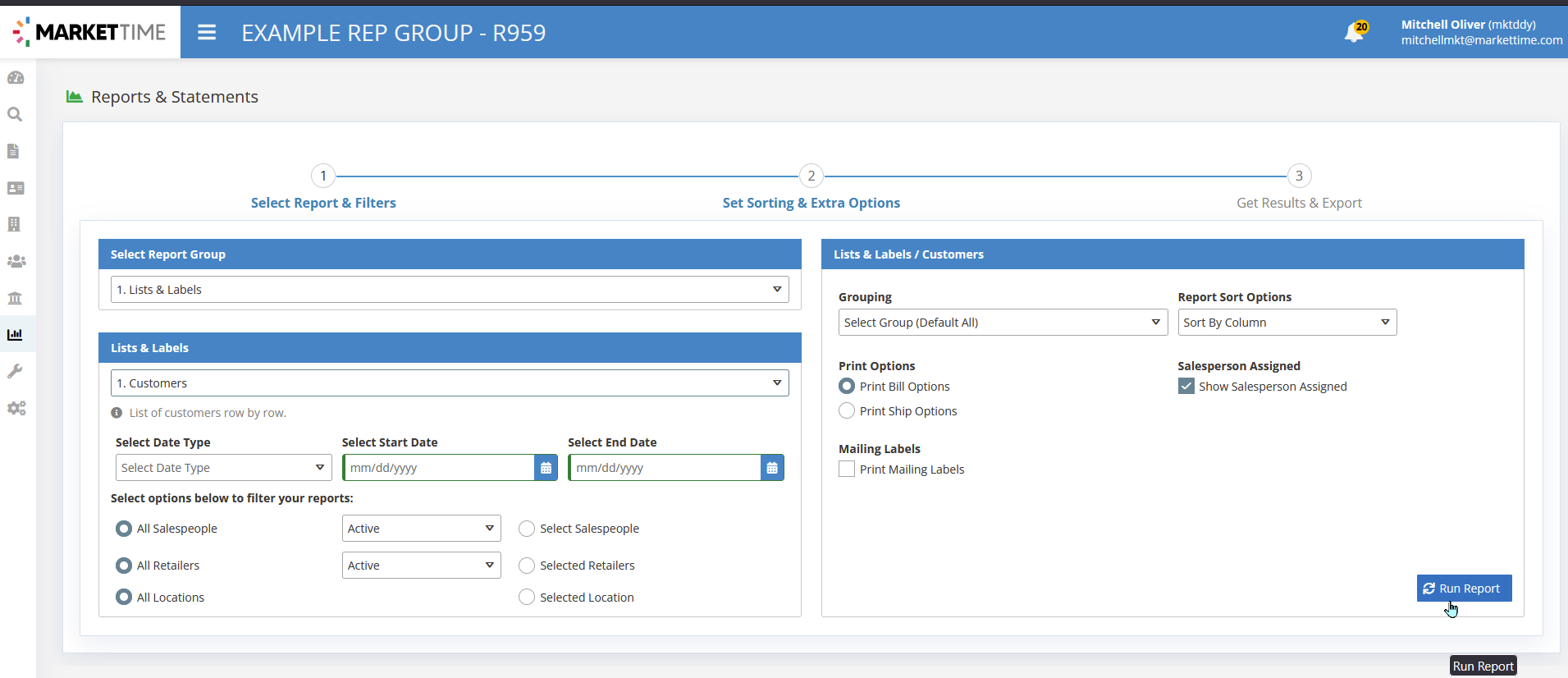
December 17th, 2025
Recommended PO#'s during Commission Import PO Mapping
When MarketTime cannot find an import record from your Commission Import sheet, you may not have to click the 'Search PO" button to map your record. MarketTime will search your given PO# for any PO#'s that match by a "Starts with", "Ends with", and "Contains" Search. Previously, MarketTime would only search the PO#'s from your Commission Import sheet with an "Exact Match" search. When clicking on a Recommended PO#, the update to your commission record will be made right away. In the example below, the PO# "7490651" is being provided on an Excel upload, but there are no PO#'s in MarketTime that match this result. However, MarketTime is recommending a PO# that is almost exactly the same, but starts with a "0" for the user to click on.
Edit the order that "Trending Items" appear on your B2B site
When editing your B2B settings and navigating to the "Home Page" section, click the "assign items" button to choose your trending items
In the pop-up that appears, you can choose all items in MarketTime on the right side of your screen. On the left side of your screen are the items that are currently Trending. You can change the Sort Order to sort the items on your b2b site in the order of your choosing
'Show Cancelled Orders' Toggle on View Orders screens
When viewing orders in MarketTime, Cancelled orders are automatically filtered out by default. For ease of access, if you would like to view Cancelled orders, you can click our new "Show Cancelled Orders" checkbox to see those orders!
Other Improvements:
- Auto-Approved B2B accounts will now notify the designated email for B2B Approvals
- An issue with duplicating orders when editing/viewing a Manufacturer's page has been resolved
December 10th, 2025
Search Multiple Customers during Commission Import PO Mapping
When MarketTime cannot find an import record from your Commission Import sheet, you can click the "Search PO" button to map that record to an existing order in MarketTime. During this process, we have enhanced the ability to search orders across multiple customer accounts. Previously, users were forced to select a single customer account when filtering the result set by customer. You are now able to search for the name of your customer, or, part of the name of several customers; and MarketTime will return orders for all of the customer accounts that match your search.
Use Ship To as Bill To
MarketTime now supports the “Use Ship-to as Bill-to” feature!
When this option is selected on a sales order, the Billing Information will automatically mirror the selected Ship-to address on the order, all printouts and information sent to the manufacturer.
This setting is managed on an order-by-order basis, but the system will provide helpful prompts to reduce the effort required by the order writer.
When the “Use Ship-to as Bill-to” checkbox is enabled in the web app, users will be unable to edit or change the billing or shipping address until the checkbox is turned off. Mobile app users will see the billing address automatically update to match the shipping address when this feature is enabled on the web app. For iPad users, this enhancement will be available through the App Store.
This feature is not supported on Android; therefore, when the “Use Ship-to as Bill-to” option is enabled on the web app, the update will not sync to the Android app.
November 26, 2025
B2B Registration Auto-Approval
We’ve enhanced the B2B registration process to make it seamless and faster for both Retailers and Repgroups.
What’s New
Automatic Approval for Matching Emails:
When a retailer registers on a repgroup’s B2B site using an email that already exists on the repgroup’s customer account, the registration will now be automatically approved. Retailers will receive an approval email shortly after completing their registration.-
Repgroup Review Option:
Repgroups still maintain full control and may reject a registration even after automatic approval if needed. Streamlined Access Across Multiple Rep Groups:
Retailers who already have B2B login credentials can now use the same credentials to log into another rep group’s website, provided their email matches a customer record on that repgroup’s account.
These improvements are designed to reduce delays, improve access, and create a more efficient process.
November 19, 2025
Report Update: 1.2 Customers by Order Sales
On September 24th, we released an update to the 1.2 Customers by Order Sales report that ensured the report was analyzing Order Data to pull a customer list. We found that some filters were still following other paths that were not based in Order Data, so we have further updated the parameters on this report. At this time, the report should only show you a customer that has placed an order for the parameters you've selected. Such parameters include Order Date, Order's Manufacturer, Order's written by a certain salesperson, etc. Please let us know at support@markettime.com if you are seeing customer accounts that you are not expecting to see on this report.
November 5, 2025
If PONumber is blank, we will InvoiceNumber as PONumber for Direct order Import
For users that are importing commissions, and have set specific rows to be imported as "Direct Orders" -- you may leave the PONumber value blank on the commission import sheet. If blank, MarketTime will automatically map the Invoice Number and use it as the PO Number on the direct order! If the PO# is still provided on a Direct Order Import. Below is an example of a direct order where the PO# field was left blank, and the customer has been mapped in MarketTime.
Hardcode Customers tab when exporting divisions
For users that are using the Salesperson/Manufacturer/Division assignment setting, You can export your divisions to see a tab of all Hardcoded customers, and the division/customer/salesperson that the hardcode is applied to.
October 29, 2025
Assign Divisions to Salespeople and Manufacturers from the Division Screen
For ease of configuration, we have added two buttons to the Divisions page that allow you to assign/unassign Salespeople and Manufacturers to divisions in bulk. If a Manufacturer or Salesperson is a part of a Territory for the selected Division, the option will be grayed out, and you will not be able to unselect it.
Update to Pre-Authorization Time Limits
To stay compliant with card brand regulations and protect our customers from potential chargebacks, MarketTime will soon implement a maximum 5-day authorization period for pre-authorized payments.
What’s Changing:
- Pre-authorizations older than 5 days will automatically expire.
- Payments that exceed the pre-authorized amount or have expired pre-auths will require a new payment process.
- A new on-screen tracker will display how many days remain before a pre-authorization expires.
Why It Matters:
This update ensures compliance with Visa and Mastercard rules, reduces risk of chargebacks, and improves payment accuracy and transparency.
Key Details:
- The system will now track the age of pre-authorizations.
- The Pre-Auth pop-up will not appear if the pre-auth is more than 5 days old or if no valid pre-auth exists for the full payment amount.
- If a pre-authorization has expired (older than 5 days) or is for a lesser amount, system will initiate a “Process Payment.”
- A UI tracker will display pre-auth age and expiration.
- Applies to all manufacturers using the pre-auth process.
No action is required— this update will roll out automatically within the next week.
Salesperson Information Visible on B2B Website
Retailers can now view salesperson information directly on the B2B website under each specific brand. This enhancement strengthens the connection between customers and salespeople, making it easier for retailers to know exactly who to contact regarding their orders.
Customer Information Visibility from Sales Order
Customer Advisory Board Top Priority Item
Order writers can now access customer details directly from a sales order. The new View Customer button opens a read-only view of the customer record, displaying key information such as the Customer ID (e.g., B12332), Notes, and Order History.
Filter by Multiple Order Statuses
Customer Advisory Board Top Priority Item
Salespeople, rep groups, and manufacturers can now filter orders by multiple statuses on the View Orders page. By default, the filter includes all statuses (repgroup and manufacturer statuses) except CANCELLED. This enhancement gives users greater flexibility in choosing which orders they want to view at a time.
UPC Visibility on the B2B Website
Rep groups now have control over which UPC numbers are displayed on their website. By default, UPC 1 is enabled and will appear for all items that have it. Rep groups can also choose to display UPC 2 and UPC 3 by selecting the corresponding checkboxes. To hide all UPCs, users can simply deselect all checkboxes.
Marked as Sent Orders Hidden from Manufacturers
Orders that have been manually marked as sent to the manufacturer by a rep group or salesperson will no longer be visible to the manufacturer. These orders will remain visible to the rep group and salesperson on their View Orders page.
This update helps eliminate confusion and prevents manufacturers from accidentally processing duplicate orders.
October 15, 2025
Check Numbers and Commission Pay Dates recorded on Company Commission Summary
For users that are using the "Pay Salespeople" process from the Check Log screen, the report that is generated during step 1 will record the Check Numbers and Commission Pay Dates that you have selected. This Company Commission Summary report can be ran with the same commission pay date on Reports & Statements, if you are looking to cross-reference the report in the future.
October 09, 2025
Order Filter by Order Writer
Manufacturers, salespeople, and repgroups can now filter orders by Order Writer on the View Orders page. This enhancement offers an additional, convenient way to search for and locate orders within MarketTime.
Auto-Map Invoice Number, Invoice Date, and Invoice Amount during Direct Order entry
When users enter the PONumber, ShipDate, and Order Total during Direct Order entry, the Invoice Number, Invoice Date, and Invoice Amount will be auto-populated! If you wish to enter a different Invoice Number, Invoice Date, or Invoice amount form the provided PONumber, Order Date, or Order Total; you will still have the ability to enter those values separately. Please note that if you have entered a separate value for the invoice information, but then make a secondary change to the Order Information -- your invoice information will be overwritten.
Bug Fix: Duplicate Payment Records
We resolved an issue that caused some duplicate payment records to appear when updating or merging customer credit card information. In some cases, this prevented users from selecting a credit card during the order entry process.
With this update, payment records will now remain unique and correctly linked to each customer, ensuring smooth order creation and payment processing.
October 1, 2025
Order Filter by Retailer Bill to Name
Default Filter Settings: The default filter on the View Orders page is now set to Bill to Retailer Name/Zip, streamlining the order management process.
Dynamic Display: The platform will now display the appropriate retailer's name and zip code based on the selected toggle.
View Orders Navigation
A new "Back to View Orders" button has been added to the Finalize Order page for users logged in as Salespersons and Repgroups. The button appears only when accessing a sales order from the View Orders page, not while creating a new order. This enhancement simplifies navigation and helps improve order management efficiency.
September 24, 2025
Report Update: 1.2 Customers by Order Sales
Run a Customer List based on Order History
Users can now use the Customers by Order Sales report to generate a List of Customers based off of Order Sales History criteria! Below is the location of this report. Previously, the report only showed customer's that had a special relationship with a given manufacturer. Now -- the report loads all customers that have placed an order!
Some recommended usages of this report are below!
Q: How do I see all customers that have placed an order for a specific manufacturer last year?
A: Use this report. Set the Date Range to 01/01/2024 - 12/31/2024. Use the "Selected MFRs" filter to select your specific Manufacturer. Run Report
Q: How do I see all customers that placed an order during Jan Market?
A: Use this report. Set the Date Range to 01/01/2025-01/31/2025. Use the "Selected Order Codes" filter to select your desired Order Code for market. Run Report
**NOTE: The "Show Only Customers without Order Sales Buying History" is designed to show the inverse of this report. At this time -- the toggle is not returning the accurate results. We have created a seperate task for our development team to resolve the issues with that toggle, so that our users can view the customers that have NOT placed an order within the given criteria.
Print/Preview with MSRP
Show Retail Prices on Order Copies
Users (Repgroups, Salespeople and B2B Retailers) can now show Retail Price on their Order PDFs! When opening a Print/Preview for an order, you can use the checkbox at the top of your order to enable Retail Price/MSRP
If you would like all Print/Previews to include MSRP, you can set this up on your Default Settings, shown below!
Unassigned Customers Enhancement
Assigning Customers in bulk will follow Territory/Division Rules to automatically identify the correct rep.
There are still a few outstanding situations that cause customers to be created and not receive the proper assignment; ie, customer's created on mtPro. This new feature should allow you to quickly resolve the unassigned customers! In the below example, the salesperson "Forrest Gump" is assigned to the Washington Territory for the gift division. The two Customers that do not receive assignment (John Devdas - Samson Testing, John Devdas - Lee's Tshirts) have zip codes that are not assigned to a territory for this test sales agency.
Catalog Enhancement
Rep groups can now edit catalogs they have created for self-managed manufacturers. This enhancement allows users to save a catalog in progress and return to complete it later, providing greater flexibility in the creation process.
BUG FIX: Users Cannot Edit/Save Digital Catalogs that they've uploaded
Sales Agency's can now edit documents that they've uploaded for Manufacturer-Managed Accounts.
Previously, if you were uploading a digital catalog for a Manufacturer that manages their own account and/or is connected to other repgroups -- you were required to finish the hotspotting in one sitting. This is because MarketTime would restrict you from editing catalogs that you created for those Manufacturer-Managed accounts. We have resolved this issue now -- so that the users who have uploaded the catalogs will be able to edit them and update them going forward!
New Feature: Automatic Payment & Refund Email Receipts
We’re excited to announce that MTCharge+ now automatically emails receipts for every successful payment and refund.
What’s New
- Payment Receipts – Cardholders will receive an email receipt immediately after a payment is completed.
- Refund Receipts – If a refund is processed, a receipt will be sent automatically.
- Delivery – Receipts are sent directly to the Bill to email address on the order.
- Details Included – Each receipt clearly shows the receipt number, PO number, masked payment method, transaction date, and amounts paid or refunded.
Example Payment Receipt -
Example Refund Receipt -
Notes & Special Instructions: Enhanced Credit Card Detection
Issue
Users were entering credit card numbers and, in some cases, CVV codes into the Notes or Special Instructions fields. This is a violation of PCI compliance requirements, as these fields are not certified for storing sensitive payment data.
Resolution
We have implemented new safeguards to prevent PCI violations:
- Improved Detection Logic: Enhanced code now more accurately identifies potential credit card numbers in both Notes and Special Instructions.
- User Confirmation Checkbox: A mandatory checkbox has been added, requiring users to confirm they have not entered credit card numbers in Notes or Special Instructions. Users must check this box to proceed with the transaction.
- False Positive Protection: By requiring user confirmation, the system reduces disruptions from false positives while placing responsibility back on the user to ensure compliance.
Impact
- Strengthens PCI DSS compliance by preventing sensitive data from being stored in non-secure fields.
- Ensures users acknowledge responsibility for compliance at the point of entry.
- Improves security without unnecessarily blocking legitimate Notes or Special Instructions.
User Guidance
- Always enter cardholder data only in PCI-compliant payment fields.
- Do not include credit card numbers, CVV codes, or expiration dates in Notes or Special Instructions.
- Confirm compliance by checking the new confirmation box before completing transactions.
September 10, 2025
Order Date Range Filter
Customer Advisory Board Top Priority Item
You can now set a default date filter on the View Orders page. This user-specific feature allows both Salespeople and Rep Groups to save their preferred order date range, removing the need to manually select a date range each time they browse the View Orders page.
Zip Code Filter
Customer Advisory Board Top Priority Item
A separate column for Zip Code has been added to the View Orders page, allowing Salespeople and Rep Groups to filter and sort orders by zip code. This enhancement gives users more flexibility and helps them find orders faster.
September 9, 2025
New Payment Feature: Refund Receipts
Refund Receipt Download
Users can now download refund receipts for mtCharge+ transactions, providing improved recordkeeping and transparency.
Automated Email Receipts
Cardholders will automatically receive an email receipt whenever a refund is processed, ensuring timely and clear communication.
Coming Soon: Automated email receipts for all payment activity.
September 2, 2025
Payment Notification: “Request New Payment Method”
Issue:
Previously, when a manufacturer requested a new payment method, retailers did not receive confirmation or a receipt indicating that the transaction had been processed successfully. This lack of communication created uncertainty for retailers.
Resolution:
The system now automatically generates and sends a receipt to the retailer’s email once the requested payment method has been processed successfully. This ensures retailers have clear confirmation and a documented record of the completed transaction.
Bug Fix: Payment Fields Inconsistency When Card is Declined
Issue:
When a transaction failed or was declined, the payment field data was cleared while other related fields remained. This inconsistency caused incorrect payment update requests. For example, when a user selected “Request Payment,” the system would submit the base amount without fees, forcing the user to stop, re-enter all information, and resubmit the transaction. One reported case highlighted that shipping fees were not included in the payment update request due to the wiped data.
Resolution: We updated the workflow so that payment form values are preserved if the transaction fails. Fields will no longer reset to defaults on failure, preventing data loss and ensuring users can quickly correct and resubmit without re-entering all details.
August 21, 2025
Item Import Email Notification
Customer Advisory Board Top Priority Item
To improve visibility for rep groups when manufacturers import items into MarketTime, whether through file import, bulk import API, or mtFlow, an email notification will be sent to all linked rep groups. The email will include an attached file listing all new and updated items, with all record changes provided, excluding updates to Price Code, Size, Color, Style, Product Line, and Product Categories. This enhancement ensures rep groups are promptly informed of item changes, allowing them to make timely and accurate updates in their showrooms.
August 14, 2025
Enhanced Customer Receipt
We’ve improved the customer payment receipt experience to give a clear, complete, and accurate record of transactions. Receipts now display full item details, correct branding, and accurate spelling — making it easier to review the purchase and keep a proper copy for records.
Put away your calculator! Processing Payments Just Got Easier
We’ve made it faster and easier to process payments by automatically calculating the total amount for you. The payment screen now adds up the order amount, shipping, handling, and miscellaneous charges — eliminating the need for manual math and reducing the risk of errors.
Item Notes
Customer Advisory Board Top Priority Item
Retailers shopping on the B2B website can now view item notes as they browse. These notes, added by repgroups or manufacturers, provide valuable details to help shoppers make informed decisions before adding products to their cart.
Hover-over display
August 07, 2025
B2B Order Split
Customer Advisory Board Top Priority Item
Retailers shopping on the B2B website can now view their orders split by available date and product lines when they click on the Verify Order Minimum or Checkout button. This enhancement provides greater visibility into how orders will be split and how minimum order requirements will be applied, allowing retailers to make informed decisions before finalizing the purchase.
To enable this functionality, the RepGroup must activate the appropriate settings in the MarketTime application to split orders and enforce order minimums.
Manufacturer Item Update Notification Export
Repgroups can now export their item update notifications, offering greater flexibility to manage and utilize this data outside the MarketTime system.
The Manufacturer Item Update feature keeps repgroups informed of important item changes, such as Unit Price, UPC 1, Availability, Discontinued, New, and Deleted statuses, supporting timely and accurate store updates.
To help maintain a clean database, notifications are automatically deleted after 7 days. Be sure to review and export any needed data before it expires. You can also manually delete notifications individually using the trash icon or remove all at once with the Delete button.
New Payments Export Feature for mtCharge+ Users
We’ve added a new “Export” button to the Payments page in mtCharge+. This feature allows you to download selected or all payments and their statuses directly into Excel. It’s a simple way to quickly review transactions and streamline your back-office reconciliation process.
July 24, 2025
Daily Order Summary Email
Customer Advisory Board Top Priority Item
MarketTime manufacturers now have the option to receive a daily order summary email. This email will be sent to the company email address listed in the manufacturer's company information page. Once enabled, the daily email will include a summary of all orders submitted by connected repgroups for that manufacturer. This enhancement is designed to provide better visibility into order activity and ensure manufacturers stay informed with accurate, consolidated updates.
Shopping via Catalogs on apps.markettime.com
Customer Advisory Board Top Priority Item
We have introduced a new visual indicator on catalogs to show which items have been added to the basket. When shopping through a catalog on apps.markettime.com, you’ll now see a green border around any item that’s already in your basket. This update is designed to improve the shopping experience and promote more efficient use of catalogs on the MarketTime application.
Item External ID Visibility
MarketTime manufacturers now have visibility into the External ID associated with an item at the time of its creation. While you cannot edit an existing item External ID, you have the ability to add one if it was not previously entered. It is important to ensure the accuracy of the External ID before saving, as it cannot be modified through the user interface after it has been saved to the system.
mtFlow Error Notification Email Bug Fix
There we instances where the PO Number was not being provided to direct you to the order in error. Users will now have the PO Number accessible.
July 11, 2025
Shopping via Catalogs on B2B Website
Customer Advisory Board Top Priority Item
We have introduced a new visual indicator on catalogs to show which items have been added to the cart. When shopping through a catalog on the B2B website, you’ll now see a green border around any item that’s already in your cart. This update is designed to improve the shopping experience and promote more efficient use of catalogs on the site.
Order Delivery Elite - Batch PDF Downloads
Customer Advisory Board Top Priority Item
We’ve improved the Order Batches screen for manufacturers downloading their orders using Order Delivery Elite.
You can now generate a PDF of all the order copies from your batch, with a summary page of all the orders within your batch. You will see two options available. Generate PDF will display if you have not yet downloaded a copy of your orders. Download PDF will display if you have already generated a PDF file.
B2B Notification Email
We’re making an improvement to allow the Notification Email Address entered in the B2B Settings to be passed to the Email Us field on the B2B website.
Currently, the repgroup’s Company Email is being passed to the B2B site, which limits flexibility. Any updates to the company email on apps.markettime also change the email displayed on the B2B website.
With this update, repgroups will be able to set or update the Notification Email Address specifically for their B2B site, while using the Company Email in the MarketTime apps for other purposes.
July 07, 2025
Manufacturer Item Update
Customer Advisory Board Top Priority Item
To improve visibility for repgroups when manufacturers update items via the user interface (UI) or individual items API, notifications will now appear under the bell icon. Each new update will increment the notification count on the icon.
Repgroups can view these updates by clicking the bell icon and selecting Manufacturer Item Update, which will display changes to the following fields: Unit Price, UPC 1, Discontinued, Available, New, and Deleted.
This enhancement ensures repgroups are promptly informed of key data changes, allowing for timely and accurate updates to their stores.
To maintain a clean database, notifications will be automatically deleted after 7 days. Please review and act on them before they expire. Notifications can also be manually deleted, either individually via the trash icon or all at once using the Delete button.
Note: The Date Added/Modified field is currently displayed in the EU format (DD-MM-YYYY). We will be updating this to the US format (MM-DD-YYYY) soon.
Last Item Import, Date Added and Date Modified
Customer Advisory Board Top Priority Item
We’ve added a new column, Last Item Import, to the Manufacturers page to help repgroups track when a manufacturer last imported items, whether via file import, bulk items API, or mtFlow.
Additionally, both repgroups and manufacturers will now see two new columns on the Items page: Date Added and Date Modified. These columns provide additional visibility into when each item was initially created and last updated.
June 26, 2025
Invoice and Commission Quick Entry
Thank you to all customers who gave feedback about the Invoice Quick Entry and Commission Quick Entry pop-ups. We have made some updates so that PO Numbers (orders) with the following criteria are shown by default in the lists:
| All Sales Agency Statuses | Order Dates within the Last 24 Months |
|---|---|
Commission Import Auto-Matching Rules
Thank you also to all customers who gave feedback about the auto-matching rules used in the Commission Import tool. We have made some changes to the process of automatically matching new invoices to existing orders (PO Numbers) in your MarketTime account, so that they are not automatically matched.
| Invoices Will Auto-Match | Invoices Will Not Auto-Match | |
| Order Status |
Orders with these statuses will automatically match to newly imported invoices:
|
Orders with these statuses will not automatically match to newly imported invoices:
|
| Order Date | Within the Last 24 Months | More than 24 Months Ago |
| PO Number | When there is only one PO number and the above criteria are met, the import tool will automatically match the invoice to the existing PO number in your account. |
|
Increased Visibility of Order Information During Commission Import
Customer Advisory Board Top Priority Item
As a commission manager for a sales agency, when attempting to import a commission, you need to quickly and easily determine if the system is auto-matching to the correct PO, so you don't have to spend extra time or open additional browser tabs to figure it out.
With today's release, you now see more information on the screen to verify that the invoice is being imported to the right PO number.
The new columns that will be displayed include:
- Bill To Name
- Bill To Zip (Code)
- Ship To Zip (Code)
- Outstanding (Order Amount)
Also, we have added color-coding to make it easier to see which columns can be edited:
- Gray columns are read-only (cannot be edited)
- White columns are editable (can be edited)
"Not Transmitted" Orders in Reports & Statements
Sales agencies, we have added a new "Manufacturer Order Status" filter to our standard reports that will allow you to view and filter for orders that have not yet been transmitted to the manufacturer:
To view this new filter
- Navigate to Reports & Statements
- Select the Reporting Group 2. Order Sales
- Select any report in that section
- Click Select MFR Order Status, and you'll see the new "Not Transmitted" filter option
Salesperson Filter on mtView Abandoned Carts Report
The mtView Abandoned Carts report shows unfinished orders from your B2B E-commerce website, so you can follow up on potential orders to win back customers and sales. We have added a "Salesperson Name" filter to the report so you can narrow the list by salesperson and share the report as needed. To view this report, follow these steps:
- Navigate to Reports & Analytics > Advanced Analytics
- Click 1. Sales Agency
- Click Abandoned Carts
- Click Show Filters
- Use the Salesperson Name filter to narrow the list of results
Fixed
- mtView Top Selling Items Report: We have resolved an issue that prevented the mtView Top Selling Items report from updating since March 9, 2025.
- mtView Sales Agency Orders Oustanding: We have resolved an issue where orders with a $0.00 outstanding balance were appearing in the report.
- Search PO Number: We have resolved an issue where the search results in the "Search PO Number" pop-up for the commission import were loading slowly.
June 12, 2025
Item Import Email Notification
Customer Advisory Board Top Priority Item
To improve visibility for repgroups when manufacturers import items into MarketTime, whether through file import, bulk import API, or mtFlow, an email notification will be sent to the linked repgroups. This email will include an attached file listing only the newly added items and those updated in the following fields: Unit Price, UPC 1, Discontinued, Available, and Deleted. This enhancement aims to ensure repgroups are promptly informed of changes to these key data points, allowing them to make timely and accurate updates in their stores.
Order Status Email Notification
Customer Advisory Board Top Priority Item
To help reduce distractions caused by excessive email notifications, we are limiting the number of order status update emails sent to retailers, salespeople, and manufacturers. Going forward, notifications will only be available for critical statuses such as PENDING, BACKORDERS, and CANCELED. Manufacturers will have the option to notify the retailer and salesperson of these updates. Similarly, repgroups can notify both the manufacturer and retailer when an order is CANCELED.
B2B Item Notes
Customer Advisory Board Top Priority Item
Item notes added by manufacturers or rep groups will now be visible on the B2B site and the order copy. Retailers browsing the B2B site can view specific messages attached to items at checkout, allowing manufacturers and rep groups to communicate important updates or changes directly. This enhancement promotes seamless and transparent communication between manufacturers/rep groups and retailers.
mtView: Contact Information for Customers With Orders Report
We released a new report in April to help you view and export contact information for customers with orders so that you can reach out to them through additional communication channels, including email, phone, or postal mail. In today's release, we added the ability for you to narrow the list to just primary contacts. To take advantage of this report, follow these steps:
To access this report, navigate to Reports & Analytics > Reports & Statements > 1. Sales Agency > 39. Contact Information for Customers with Orders.
This report contains:
- Bill To and Ship To contact information
- Including physical address and email address
- Buyer contact information
- Including name and email address
- Last Order Date
- Grouped by:
- Salesperson
- Manufacturer
Fixed
- Order Statuses: We have fixed an issue where orders canceled by a manufacturer were not displaying that status in the linked sales agency account.
-
Commissions
- Track Payment Button: We have resolved an issue where the "Track Payment" button was not responding when clicked on.
- Complete Orders: We have resolved an issue where complete orders could not be edited using the commission "Quick Edit" tool.
- Commission Import: We have resolved an issue where the commission import tool would sometimes not proceed from Step #2 to Step #3.
June 5, 2025
Date Received on Order Lists
Customer Advisory Board Top Priority Item
As an operations manager for a manufacturer, when you fulfill orders, a problem you may sometimes encounter is not knowing how long ago you received an order or the kind of delay between the time the order was written and when you received it.
To enhance your dashboard so you can view the date and time orders were received in case there are discrepancies, there is a new "Received" column on your orders list:
Please note: Order Delivery Elite users will only see this date on orders received on or after June 5, 2025. This date will appear on all future orders.
Order Sales Report
Customer Advisory Board Top Priority Item
Reports & Statement > 2. Order Sales Report
Running the Order Sales report as a sales agency is now easier than ever. All order statuses, except for CANCELED, are automatically selected by default, allowing you to generate status reports quickly and efficiently without manually selecting statuses each time.
May 28, 2025
mtView Sales Analysis Reports
Customer Advisory Board Top Priority Item
Sales Agency > 17. Sales Analysis Report
We have made a few improvements to the #17 Sales Analysis Report, including:
-
Cancelled Orders: When first loading the report, orders with a "Cancelled" status will no longer load by default, so that you can quickly see your true sales numbers at a glance
- Manufacturer Order Status
- Sales Agency Order Status
-
Filters: When downloading PDF copies of a report, the filters used to generate the report will now be included in the report footnote for ease of reference.
- Manufacturer Order Status
Manufacturer > 9. Sales Analysis Report
We have made a few improvements to the #9 Sales Analysis Report, including:
-
Cancelled Orders: When first loading the report, orders with a "Cancelled" status will no longer load by default so that you can quickly see your true sales numbers at a glance
-
Filters: When downloading PDF copies of a report, the filters used to generate the report will now be included in the report footnote for ease of reference.
Salesperson > 12. Sales Analysis Report
We have made a few improvements to the #12 Sales Analysis Report, including:
-
Cancelled Orders: When first loading the report, orders with a "Cancelled" status will no longer load by default so that you can quickly see your true sales numbers at a glance
-
Filters: When downloading PDF copies of a report, the filters used to generate the report will now be included in the report footnote for ease of reference.
Improved Filtering Capabilities on Commission Import Tool
Customer Advisory Board Top Priority Item
As a commission manager for a sales agency, when you try to import commission statements, the problem you previously faced was that the system automatically matched new invoices to old or invalid orders, which could cause downstream issues if it wasn't caught early on, and potentially lead to paying commissions on the wrong orders.
To help mitigate this possibility, we have added more filtering options to the "Search PO Number" pop-up when importing commissions, so that you only see payable orders by default when importing commissions.
Filter by Date Range
When using the "Search PO Number" tool, the list will display orders with an order date within the last 12 months by default. Use the date picker to adjust the timeframe at any time:
Filter by Order Status
When using the "Search PO Number" tool, the orders displayed in the list will now show those that are most likely to be un-invoiced or partially invoiced, including orders with a status of:
- Transmitted
- Confirmed
- Invoiced
- Rep Paid
More Customer Search Capabilities on Commission Entry
Customer Advisory Board Top Priority Item
When recording commissions manually or using the commission import tool, if you need to search for a customer, we have enhanced search capabilities, including the ability to now search by:
- Name
- Buyer ID
- Zip
- Address
- City
- State
- Phone
We have also added more information in the search results, including showing value for:
- The customer's Buyer ID (BID) number
- Full address
- Phone
May 21, 2025
External Order Footnote
Customer Advisory Board Top Priority Item
As an operations manager for a sales agency or manufacturer, you can add an order footnote message to display on order copy PDFs and printouts to facilitate communication and transparency with retailers buying your products.
Use this footnote to indicate special events, terms and conditions, company policies, tariff notices, marketing messages, disclaimers, and more.
To take advantage of this feature, please follow these steps:
- Log in to apps.markettime.com
- What type of MarketTime account do you have?
-
Sales Agency Admin
- Navigate to Manufacturers
- Click on the manufacturer
-
Manufacturers
- Click Manage Company
-
Sales Agency Admin
- Click External Order Footnote
- Click the edit (pencil) icon
-
Enter your note
- Click Save Footnote
- View the note on the PDF:
3.2 Monthly Item Sales Report
Customer Advisory Board Top Priority Item
We have added additional sorting options to the 3.2 Monthly Item Sales report to make it easier to see the performance of your best and worst-performing items over time. These new sorting options include:
- Quantity Totals
- Totals
To use this report:
- Navigate to Reports & Analytics > Reports & Statments
- Select 2. Item Sales
- Select 3. Monthly Item Sales
- Choose your preferred filters
- Select your Report Sort Options
- Click Run Report
Direct Order Entry
Customer Advisory Board Top Priority Item
As a commission manager for a sales agency, matching invoices to new or existing orders was challenging because the system would display old and invalid orders. This caused unnecessary extra time and effort since only recent and unpaid orders are relevant when paying commission. We have now added options to help limit the number of orders to choose from when manually entering or importing direct orders.
Imported Direct Orders
You will see these new options appear on the Import Commission tool when you are using the "Search PO Number" pop-up:
| Sales Agency Status Filter | Order Date Range Filter |
|---|---|
|
|
|
Manually Entered Direct Orders
You will see these new options appear on the:
- Invoice Quick Entry pop-up
- Commission Quick Entry pop-up
| Sales Agency Status Filter | Order Date Range Filter |
|---|---|
|
Orders with these sales agency order statuses will appear by default:
|
Orders with an "Order Date" of the Last 12 Months will appear by default. |
Fixed
- Customer Advisory Board Top Priority Item Importing Direct Orders: We have resolved an issue where direct orders were sometimes imported to the same customer instead of separate customers.
- Outbound Order Integrations: We have resolved an issue where promotions were not exported in outbound order integrations.
- Payment Processing: We have resolved an issue where sometimes an error message of "Something went wrong in saving Build Request" would appear when attempting to process a payment for an order.
May 20, 2025
Email Deliverability Improvements
Customer Advisory Board Top Priority Item
We have made several recent improvements to enhance email deliverability for emails sent from MarketTime, ensuring that retailers, salespeople, sales agencies, and manufacturers receive them. This means that emails are less likely to end up in your recipient's spam folder or fail to be delivered in the first place.
Why did MarketTime make this change?
MarketTime made this change because we received feedback from customers informing us that emails sent from MarketTime did not always arrive in the recipient's inbox. We investigated and narrowed this down to the "From Email Address" used for these emails. Instead of sending the emails from a MarketTime email address, the email looked like it was being sent from a managed email address, such as "sally@gmail.com" or "john@examplesalesagency.com" This practice is sometimes referred to as "spoofing" and it often causes emails to be marked as spam or blocked, depending on the security settings of each Email Service Provider (ESP).
What has changed?
The changes to end spoofing and improve email deliverability include:
- Emails generated from the MarketTime web portal (apps.markettime.com) when transmitting an order to a manufacturer, including the emails sent to the:
- Manufacturer Email Address
- Bill To Email Address
- Ship To Email Address
- Buyer Email Address
- Salesperson Email Address (the Salesperson assigned to the order)
- Emails that are generated from your B2B Ecommerce website when a customer (retailer):
- Submits an order
- Signs up for a new MarketTime account and requests access to your B2B ecommerce website
- Already has a MarketTime account and requests access to your B2B ecommerce website
| Order Confirmation Emails | ||
|---|---|---|
| Assigned Orders | ||
| Email Value | Before | Now |
| From Name | The name of the logged-in user who sent the email | "Salesperson Assigned" Salesperson Name on the Order |
| From Email Address | The email address of the logged-in user who sent the email | orders@markettime.com |
| Reply-To Email Address | The email address of the logged-in user who sent the email |
Based on the "Salesperson Assigned" values on the order:
|
| Example | ||
| Unassigned Orders | ||
| Email Value | Before | Now |
| From Name | The name of the logged-in user who sent the email | Sales Agency Company Name |
| From Email Address | The email address of the logged-in user who sent the email | orders@markettime.com |
| Reply-To Email Address | The email address of the logged-in user who sent the email | Sales Agency Company Email Address |
| B2B Ecommerce Website Customer (Retailer) Registration Emails | ||
|---|---|---|
| Email Value | Before | Now |
| From Name | None | Sales Agency Name |
| From Email Address | portal@markettime.com | noreply@markettime.com |
| Reply-To Email Address | portal@markettime.com | Sales Agency Company Email Address |
What did not change?
The email-related items that did not change as part of this recent work include:
- Any emails not listed above
- The email values for:
- To name
- To Email Address
- Subject Line
- Email body copy/content
May 19, 2025
Fixed
- Order Delivery Elite: We have resolved an issue where an error message saying "Error when saving build request" would sometimes appear when attempting to process payments if you are on our new Order Delivery Elite setting.
May 15, 2025
Abandoned Carts Report
mtView now provides a comprehensive overview of abandoned cards and unfinished orders from your B2B E-commerce website, so you can follow up on potential orders to win back customers and sales. To view this report, follow these steps:
- Navigate to Reports & Analytics > Advanced Analytics
- Click 1. Sales Agency
- Click Abandoned Carts
May 8, 2025
Sent to Manufacturer (Date Transmitted) Filter Added to Sales Analysis Report
The manufacturer "9. Sales Analysis" report in mtView now includes "Sent to Manufacturer Date” as a selectable date type filter. This request arises from manufacturers transitioning to MarketTime, which need the ability to report orders based on the "Order Date Transmitted" instead of the currently available date type filters.
Most Viewed mtView Reports
What are your fellow MarketTime users up to in mtView? The most-viewed reports include:
| Most-Viewed (Rank) | Sales Agency | Manufacturer | Salesperson |
|---|---|---|---|
| #1 | 17. Sales Analysis Report | 9. Sales Analysis Report | 12. Sales Analysis Report |
| #2 | 1. Sales Agency Executive Overview | 2. Rep & Cust YTD | 3. YTD Comparison Overview |
| #3 | 8. Top Selling Items | 1. Supplier Executive Overview | 1. Customer Detail Report |
Fixed
-
Customer Advisory Board Top Priority Item Top Selling Items Report: We
have resolved an issue where the "Item Name" was displayed as "null"
in the
3.1 Top Selling Items report. To see this updated report, please follow
these
steps:
- Navigate to Reports & Analytics > Reports & Statements
- Select Report Group: 3. Item Sales
-
Select Item Sales: 1. Top Selling Items
- Select a Start Date and End Date
- Click Run Report
-
See the proper Item Name values
-
mtView
- Sales Analysis Report: We have resolved an issue where salesperson names sometimes appeared twice on the "Sales Analysis" report.
- Top Selling Items: We have resolved the issue where products were being split by the item name instead of the item number on the "Top Selling Items" report.
May 1, 2025
Order Delivery Elite
We are thrilled to announce that Order Delivery Elite is now live in MarketTime to facilitate migrations of vendors, suppliers, and manufacturers from the Brandwise Stream product to a more stable, performant, and feature-rich order delivery product for order capture, processing, and payments.
Order Delivery Elite includes options to:
- View and Manage Orders
- Configure Order Alerts
- Map Data and Resolve ErrorsCustomer Advisory Board Top Priority Item
- Batch and Deliver Orders
Order Delivery Elite is being rolled out exclusively for Brandwise Stream customers and will soon be available for all suppliers, brands, vendors, or manufacturers.
To learn more about this new set of order delivery features and capabilities, please visit our New: Order Delivery Elite help center section for complete information and details.
Fixed
- Customer Advisory Board Top Priority Item Customer Merge Tool: We have resolved an issue where merging shipping locations using the customer merge tool would sometimes cause orders to disappear from a customer record and require MarketTime support to restore their visibility.
- 4.3 Salesperson Commission Statement Report: We have resolved an issue where the 4.3 Salesperson Commission Statement report would sometimes timeout with large data sets.
Coming Soon
Credit Card Terms and Conditions Agreement
We are updating our card-capture process to improve compliance and security. Soon, Sales Agencies will be required to obtain the cardholder’s consent to accept the credit card terms and conditions before saving a card and completing an order. Clicking the highlighted terms and conditions text will pop up the terms and conditions page.
If a new card is entered and the "Save Card to Retailer" option is selected, the agreement will be stored, eliminating the need for future consent for that card. However, if the card is not saved, the terms and conditions must be accepted each time it is used for an order. The agreement will only need to be obtained once for existing cards in the system.
For MarketTime mobile app users, syncing your device will be necessary to receive this update when it is released. Failure to sync may result in errors when saving credit card details.
View the Terms and Conditions agreement here Tokenization Credentials on File Cardholder Agreement.
April 24, 2025
Fixed
- B2B Ecommerce Retailer Requests: We have resolved an issue where retailer requests sometimes did not appear after logging into a Sales Agency admin account when new B2B Ecommerce registrants signed up with addresses in specific zip codes.
mtCharge+ Payout Email
Manufacturers on the mtCharge+ payment gateway will receive a daily batch payout email notifying them of upcoming payments. This change will help facilitate payout reconciliation for our mtCharge+ manufacturers and eliminate confusion.
April 17, 2025
CVV Will Not be Required for mtCharge+ Orders
We will soon update our CCV requirement on the B2B and mobile app. For mtCharge+ orders, Order Writers will not need to enter a CVV. The CVV field on the Payment Info page will be hidden for these transactions. This update has already been made on the MarketTime Apps (https://apps.markettime.com/login).
Salesperson Groups on Agency Commission Comparison Reports
For the 1. Sales Agency > 3. Agency Commission Comparison > Two Year Comparison Report, you will now be able to filter and group by Salesperson Group:
Fixed
- B2B Ecommerce Forgot Password Form: We have resolved an issue where sometimes the "Forgot Password" email was not sent after a retailer entered their username into the "Forgot Password" form on B2B e-commerce websites.
- Web Portal Dashboard: We have resolved an issue causing the apps.markettime.com dashboard to load manufacturer information slowly.
Email Notification for Failed mtCharge+ Net Terms Transactions
MarketTime manufacturers will receive email notifications when an mtCharge+ net terms transaction fails to process on its scheduled charge date. This enhancement removes the need to manually monitor net terms transactions in the MarketTime UI, saving time and ensuring prompt awareness of any issues.
April 10, 2025
Contact Information for Customers with Orders Report
A new report is available through MarketTime's mtView Advanced Analytics product that will make it seamless and straightforward to get contact information into your CRM or email marketing program of choice. To access this report, navigate to Reports & Analytics > Reports & Statements > 1. Sales Agency > 39. Contact Information for Customers with Orders.
This report contains:
- Bill To and Ship To contact information
- Including physical address and email address
- Buyer contact information
- Including name and email address
- Last Order Date
- Grouped by:
- Salesperson
- Manufacturer
March 31, 2025
Salesperson Groups on Advanced Analytics Reports
If you are a sales agency or manufacturer with sales reps and use Salesperson Groups to manage and report on sales activities, you can now utilize this information when running reports in mtView. The Salesperson Group filter has been added to the following two reports:
1. Sales Agency Executive Overview > Sales Rep Performance
1. Sales Agency Executive Overview > Sales Rep Top Performers by Vendor
March 20, 2025
Customers by Salesperson Report
A new report showing salesperson customer assignments is now available in mtView. Use this report to ensure salespeople are correctly assigned, double-check hardcode assignments, export customer contact information for email marketing campaigns, keep your CRM system up to date, and more!
This report can be found by navigating to Advanced Analytics > Sales Agency > 38. Customer by Salesperson.
February 27, 2025
mtCharge+ Daily Payouts Report
As a supplier, vendor, or manufacturer processing payment through MarketTime with mtCharge+, you can now easily see your daily payouts in one place in the mtCharge+ Daily Payouts Report:
You can also subscribe to the report and receive daily, weekly, or monthly emails, automatically delivering this report to your inbox.
To access this report, follow the how-to steps outlined here: mtCharge & mtCharge+ FAQ > Daily Payouts Report.
Fixed
-
mtCharge+ Customers: We have resolved an error
that
was sometimes appearing when trying to process credit cards on February
25,
2025, like the example shown below:
-
B2B E-commerce Websites: We have resolved the issue
causing
a red error message like the one shown below to appear when navigating
to
a B2B ecommerce website:

-
Reporting Discrepancies mtView Salesperson Commission Statements:
We have resolved an error where the "Salesperson to Pay Name" was sometimes
showing as "NULL" in the following mtView reports:
- Orders Salesperson Commission Statement Detail
-
Invoice Salesperson Commission Statement Detail
-
mtView: We have resolved an issue caused by a third-party
provider that prevented mtView users from seeing their reports when accessing
them through apps.markettime.com, and would show a blank screen:
February 20, 2025
Refunds for Ad-Hoc Payments
As a Manufacturer processing payments through MarketTime's mtCharge+ payment solution, you can now refund ad-hoc payments at your convenience!
- Locate the Transaction you want to refund
- Click the Refund button
- Choose the Refund Reason
- Click Submit Refund
mtCharge+ provides an easy and powerful way to process payments in MarketTime. Suppliers and Sales Agencies can take advantage of the many benefits that mtCharge+ has to offer by scheduling a demo today!
Sales Analysis Report
The "Sales Analysis" Report was updated with filters for:
- Order date
- Cancel date
- Ship date
Furthermore, we added a new filter, "Salesperson Order Writer," to get a list of all orders based on the order code and selected date range.
Customer List by Category Report
We updated the "Customer List by Category" report for R ID and S ID accounts with the following enhancements:
- Ability to Sort by: Ship To Address or Bill To Address
- Added columns
- Primary Contact
- YTD Order
- Invoiced volume (the total dollar value of all invoiced orders combined)
- Updated filter names to match other report naming conventions
Item "Product Lines" on Reports
We have updated the following reports to include "Product Lines" as a filter:
- Sales Analysis
- Top Selling Items
February 6, 2025
Merging Customers
We have improved the customer merge tool so you can merge shipping locations on the "From" and "To" customers in one simple step:
Changes to reptimeportal.com Website Address (URL)
If you are used to logging into reptimeportal.com to access your MarketTime account, please be aware that the website will redirect you to the correct MarketTime website URL. Please make sure to update any saved bookmarks that pointed to the old website address to now point to the new website address:
- Visiting https://reptimeportal.com now redirects to https://apps.markettime.com/login.
- Visiting https://reptimeportal.com/login also redirects to https://apps.markettime.com/login
- Visiting https://www.reptimeportal.com redirects to https://apps.markettime.com/login
- Visiting https://www.reptimeportal.com/login also redirects to https://apps.markettime.com/login
Fixes
- Receipts: We will release a fix to address situations where manufacturers sometimes cannot download receipts for payment transactions.
January 23, 2025
Fixed
- Mobile Web Browsers: We have resolved an issue that some users had where a "Problem Repeatedly Occurred" message would appear when attempting to access apps.markettime.com using a web browser on a mobile device.
- Customer Account Numbers: We have resolved an issue that prevented manufacturers from saving customer billing and shipping account numbers for orders imported by sales agencies.
- B2B Mobile App Syncing: We have resolved an issue where manufacturers with many items would sometimes cause problems syncing for users of MarketTime's B2B mobile application.
- Ongoing - Duplicate Orders: We continue investigating reports of duplicate orders when using the MarketTime B2B mobile application to create orders.